Part A · For participants
Everything you see and receive, from the day before the event to the evening after.
How a day at the tables works
Forum Connections is an in-person speed meeting day. During the day there are several sessions (four in Milan: two in the morning and two in the afternoon). In each session you sit at a table of about eight people and, in turn, everyone says who they are, who they are looking for and how they can help the others. In the next session you change table and meet new people.
- The tables are not random. The platform builds them from the same affinity scores it uses for your MATCHes: it tries to seat you with people you have something to build with, and to leave nobody at a table that is of no use to them.
- Some rules are fixed: you never sit with a colleague from your own company (same company name or same VAT number), and you can meet the same person at most twice during the whole day.
- Table hosts are the companies that host a table: they stay at the same table, with the same number, all day long. The others rotate.
- Companions sit on an extra chair behind the person they accompany and follow them from table to table: they do not take part in the networking.
- The plan is closed on the morning of the event and printed: the badges, the table stands and the staff list all come from that plan. Your app shows exactly the same plan, so paper and phone always say the same thing.
Why is the plan closed in the morning and never changed?
Because the room holds a hundred people looking at a stand on the table and at their own badge. If the plan changed during the day, the paper would say one thing and the phone another, and a network drop would be enough to create confusion. A single plan, frozen and printed, works even if the connection goes down.
The day before: confirmation on WhatsApp
The day before the event, if staff have enabled confirmation for that event, you receive a WhatsApp message like this one:
Ciao Giulia, confermi la tua presenza al Forum Connections di domani? AIRA© ha bisogno di saperlo per poterti posizionare ai tavoli in modo corretto.
The message is sent in Italian only: “Ci sarò” means “I'll be there” and “Non vengo” means “I'm not coming”.
- First send at 09:00 the day before. At 18:00 the same message goes out again, only to those who have not replied yet. Times are Italian summer time; in winter time the messages go out an hour earlier.
- Just tap a button: you don't need to type anything. You don't receive a reply message: your choice is recorded silently.
- “Ci sarò”: we keep your seat at the tables.
- “Non vengo”: the next morning the table plan is prepared without you, so your seat is not left empty at a table. It does not cancel your registration and it is not a refund request.
- If you don't reply, we expect you: your seat stays in the plan.
- The message only reaches people who are registered, have a mobile number in their profile and have not turned off WhatsApp messages. Anyone who has already checked in does not receive it.
Changed your mind? Tap the other button in the same message: the last reply counts, until the end of the event. Once you have checked in at the entrance, however, what counts is that you are in the room, and a “Non vengo” no longer changes anything.
On the day of the event: the red bar
On the day of the event, if you are registered, a red bar appears at the top of your dashboard: “WELCOME TO FORUM CONNECTIONS”, with the “Go to agenda” button. One tap and you are in your agenda.
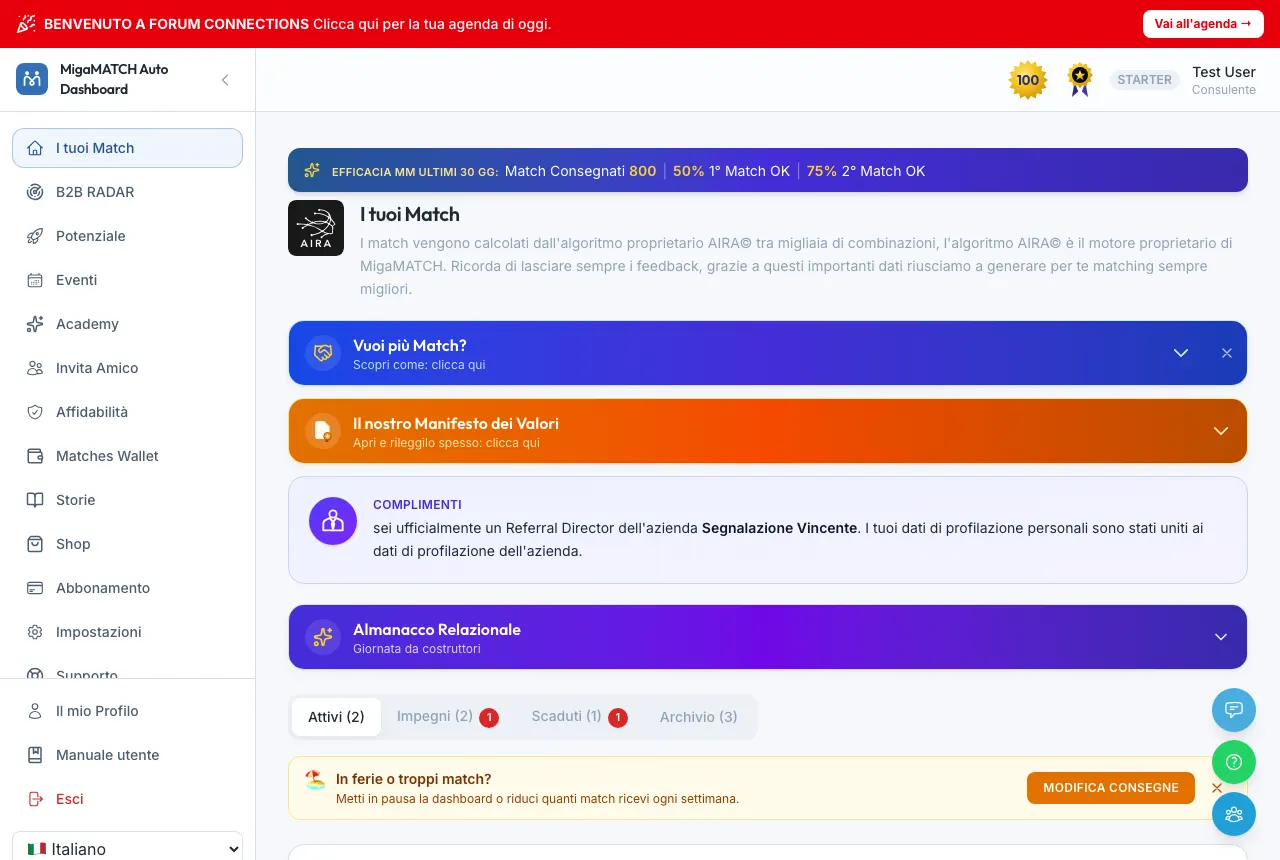
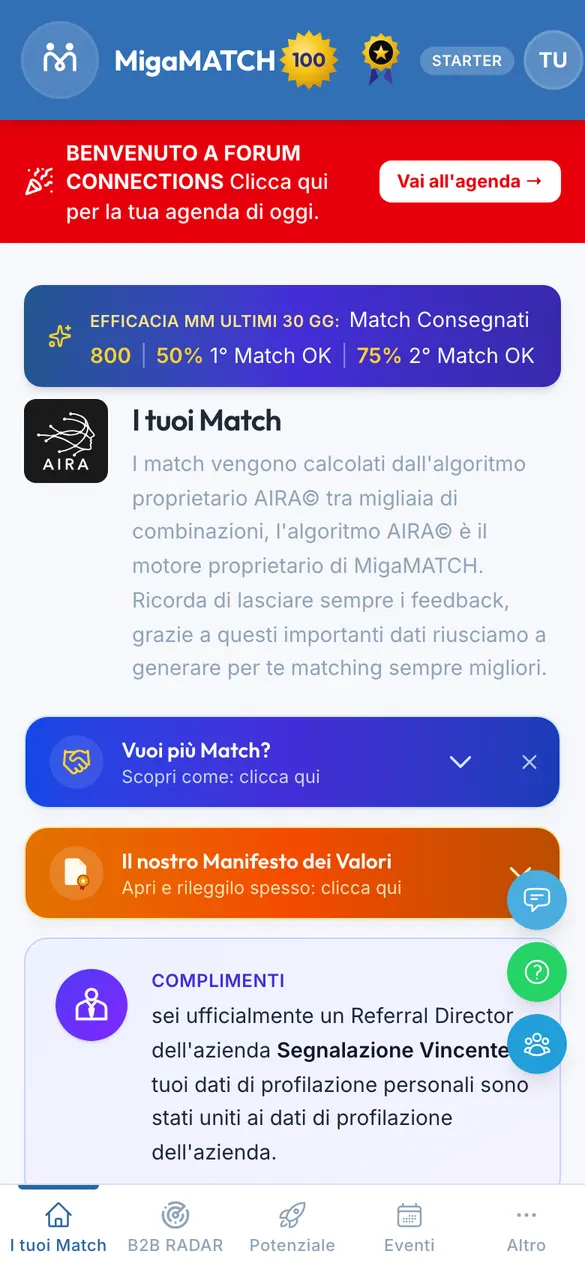
- You see it for the whole length of the event: from midnight of the day itself until the end (if the event runs past midnight, until it finishes), and only if you are registered for an in-person event that has not been cancelled.
- It takes priority over the other dashboard notices (overdue feedback, a subscription to fix, MATCH paused, reliability below the threshold): they stay below it. It gives way only if you still have to complete your registration or your account is disabled. The agenda is always reachable from the “Go to agenda” button on the Events page.
Where to find your agenda
Page: /events/…/agenda (it is not a menu item)
The agenda has no menu item of its own: you reach it in three ways.
- From the red bar on the dashboard, on the day of the event.
- From the Events page: the card of the event you are registered for has the “Go to agenda” button: on the day of the event it is solid red, like the bar at the top of the dashboard, so you know they are the same thing. On the days before, it is grey and says “Available on the day of the event”.
- From a direct link or a printed QR in the room: if you are not signed in yet, we ask you to sign in and then take you straight to your agenda.
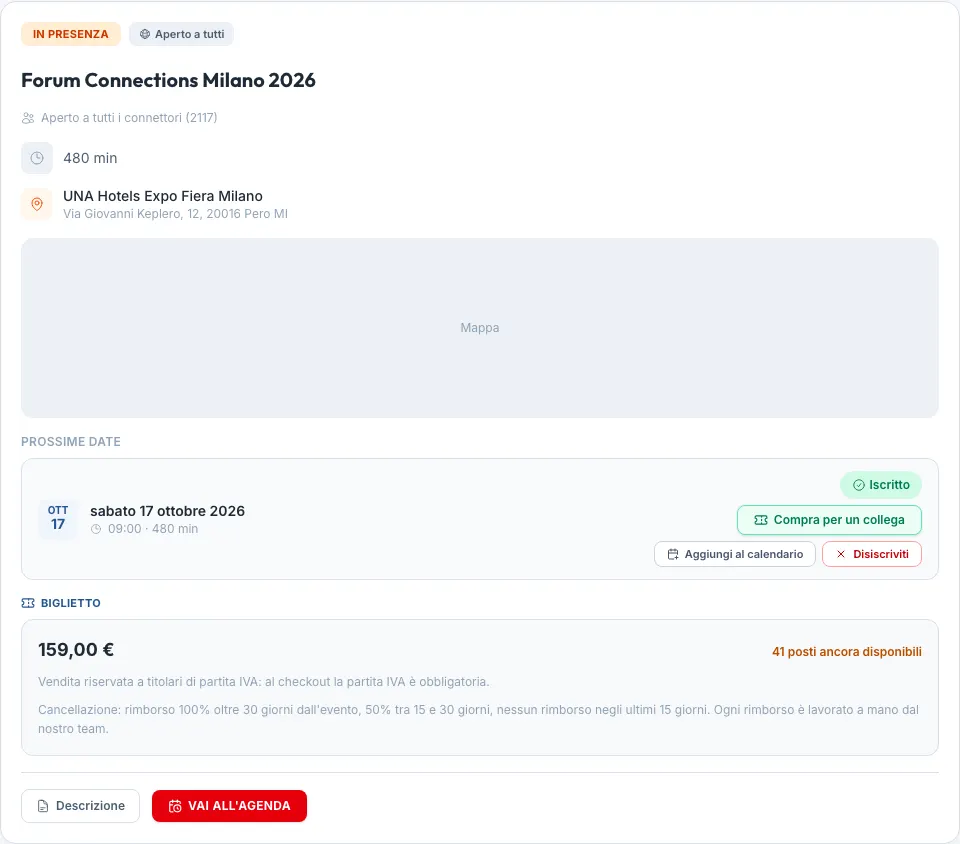
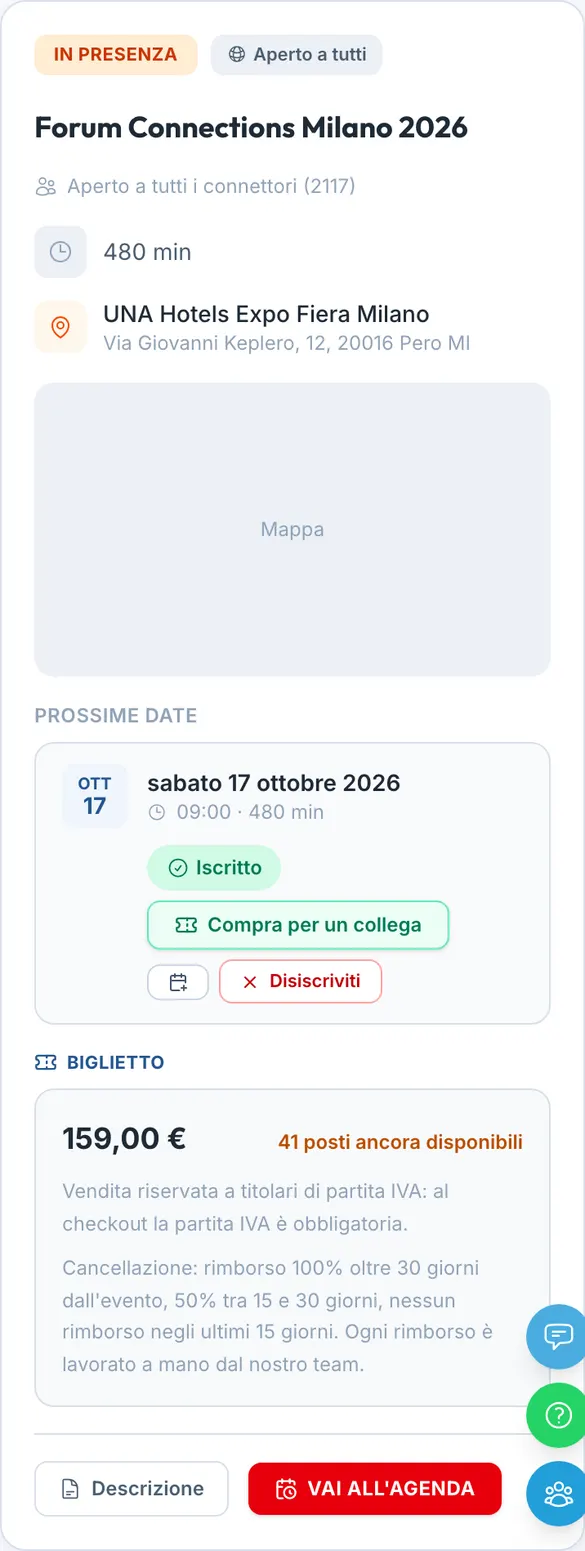
What you see depends on the time and on the state of the plan:
| What you see | Why |
|---|---|
| “Your check-in” with the QR | The agenda is not open yet: on the day of the event it opens at 07:00, unless the organiser has chosen a different time. The QR, however, is already there. |
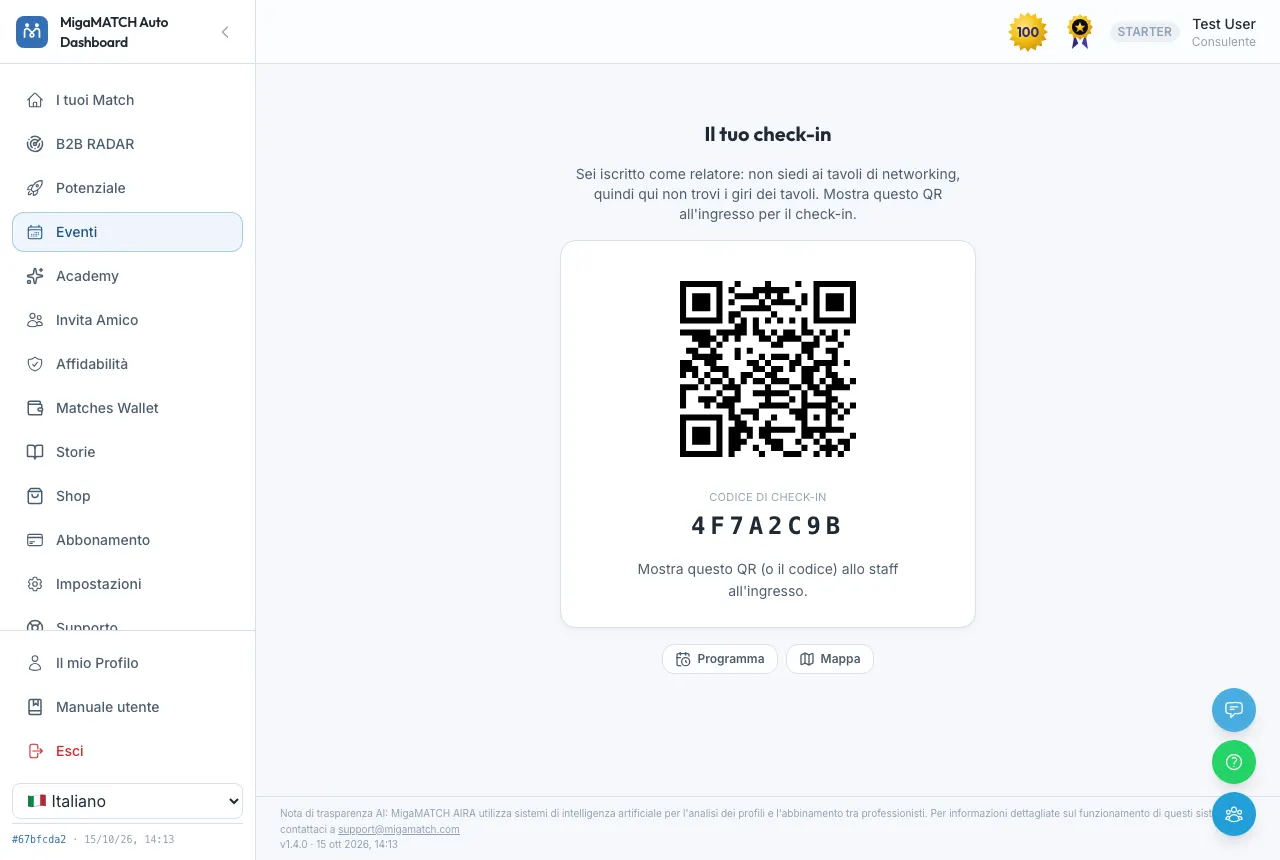
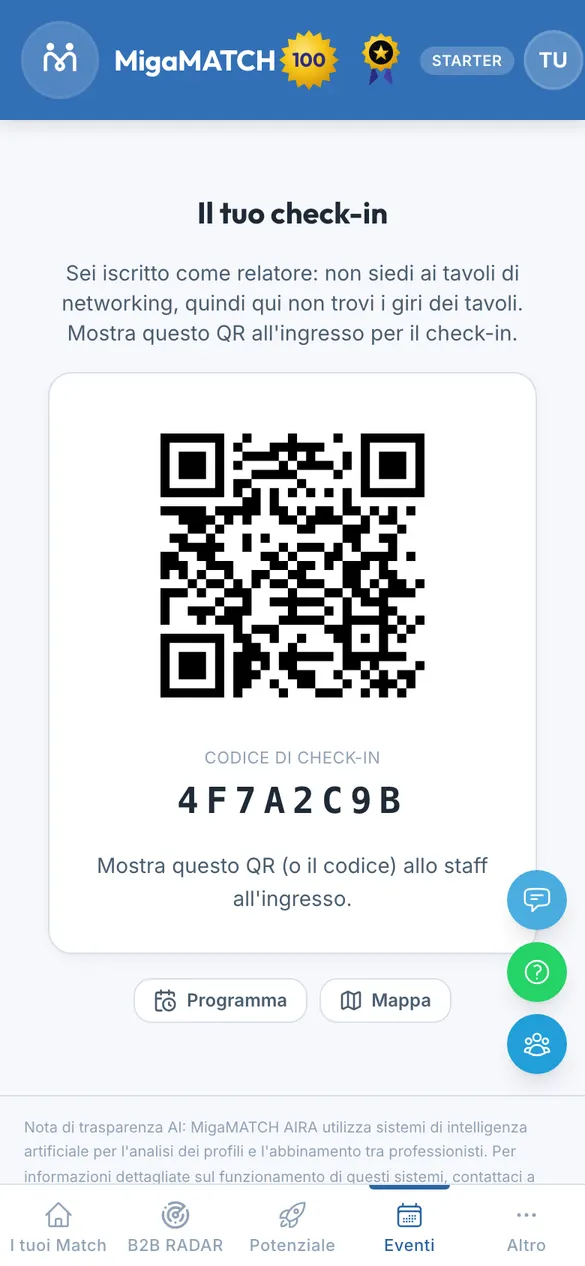
| “Your check-in” with “You are registered as …” (speaker, staff, moderator, companion) | You are on the door list but do not sit at the networking tables: all you need is to get in, so you see the QR (after the release, like everyone), the “Schedule” and the “Map”, with no table rounds. A moderator reads “You moderate table N all day”: the table stays the same, the participants change every round. |
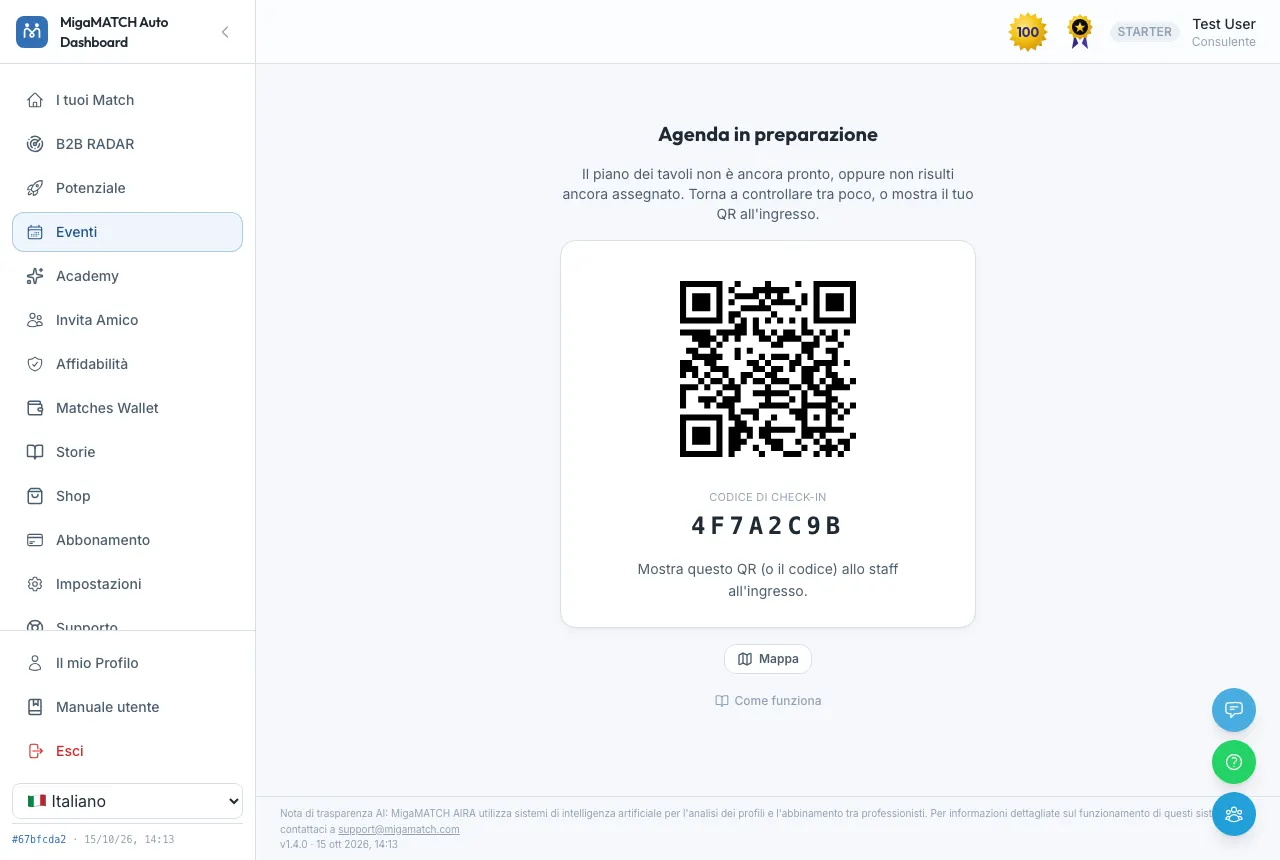
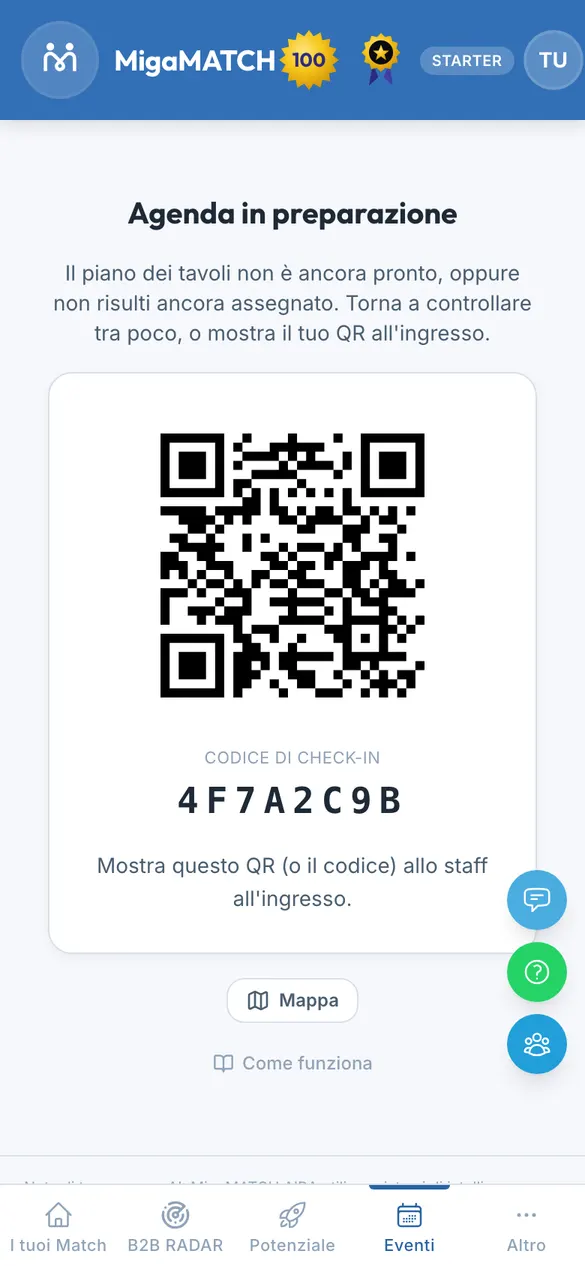
| “Agenda in preparation” | The agenda is open but the organisers have not finalised the table plan yet, or you are not in it yet (for example because you registered after the freeze: staff will give you a seat in the room). |
| “Your day” with the sessions | All set: you see your tables. |
| “No agenda to show you today” | You don't appear to be registered for an in-person event happening today. |
| “Event cancelled” | The event, or that date, has been cancelled. |
| “Agenda not available” | The organisers have temporarily switched the feature off: follow your badge and the stands on the tables. |
Before opening: your check-in QR
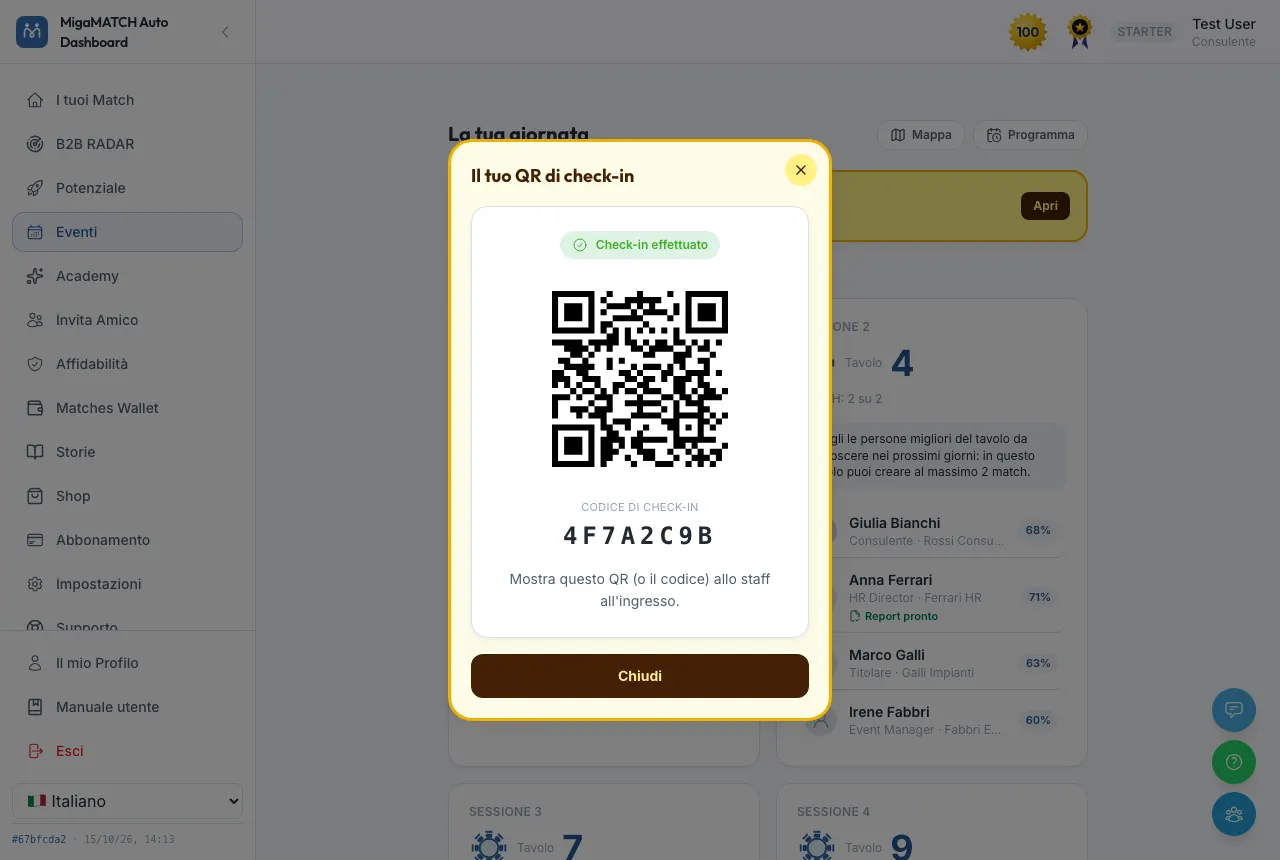
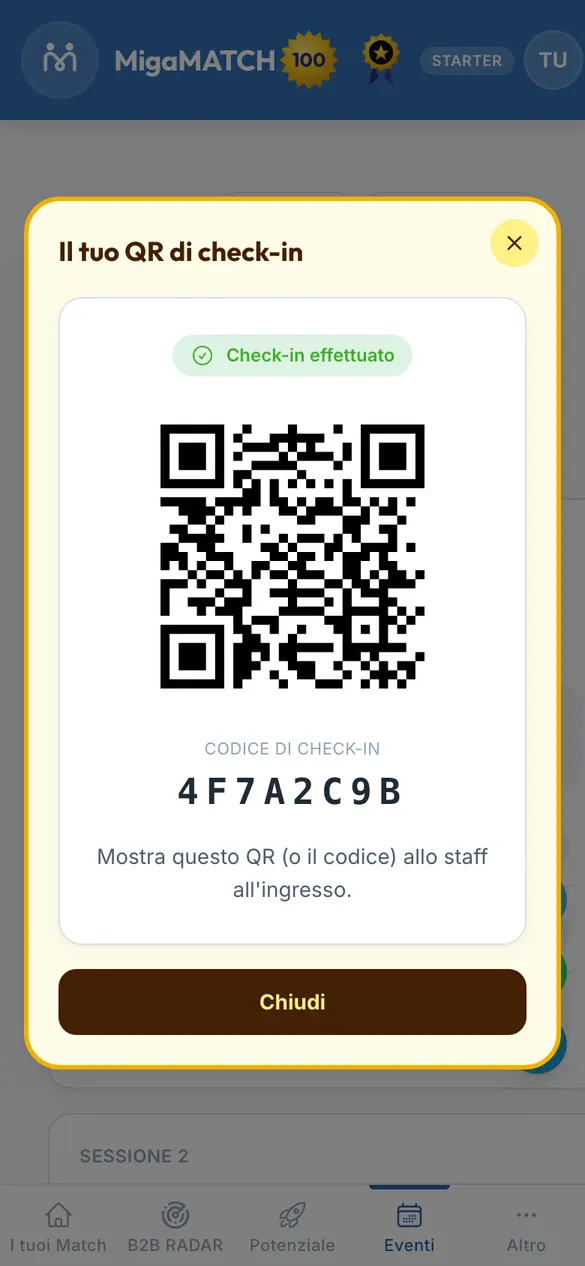
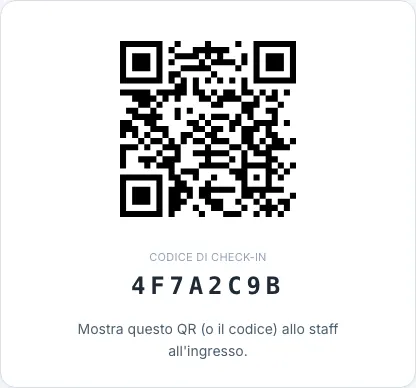
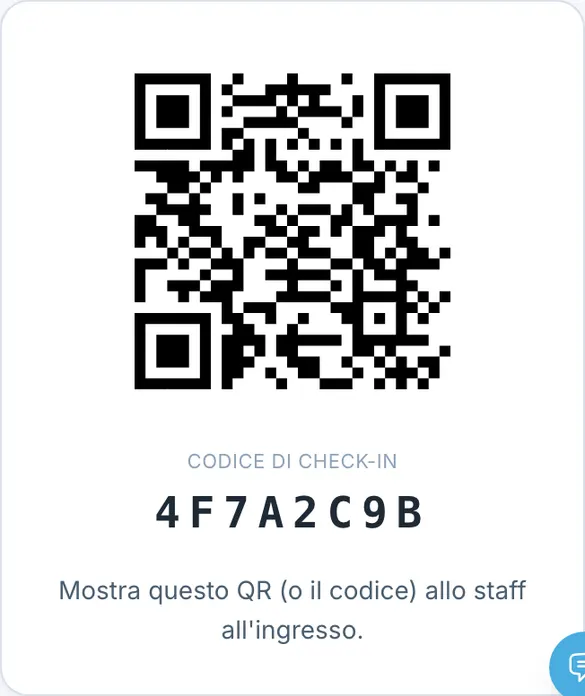
Before the agenda opens, the page shows your personal QR and an 8-character check-in code. This is what you show at the entrance: staff scan it with their phone, or type in the code. If your phone battery is flat, that's not a problem: staff look you up by name, and the QR is also printed on your badge.
If the event requires the filming release, the QR does not appear until you have accepted it: in its place the yellow button says “Read and accept the release to see the QR”. Tap it: at the top you find the “In short” box with the essentials (filming in the common areas, use for communication and promotion, how to withdraw and what happens after you do); below it, “Read the full text of the release” opens the complete text and “Printable version” opens it on a page you can print. Tick “I have read and accept the release” and press “Accept and show the QR”. Your acceptance is for that event and date, and is recorded with the date, the time and the version of the text. If accepting in the app does not work, you sign the same release on paper with the staff at the entrance. If instead you do not want to accept, press “Cancel”: the QR stays hidden and you need to speak to the staff at the entrance, who will decide with you how to proceed.
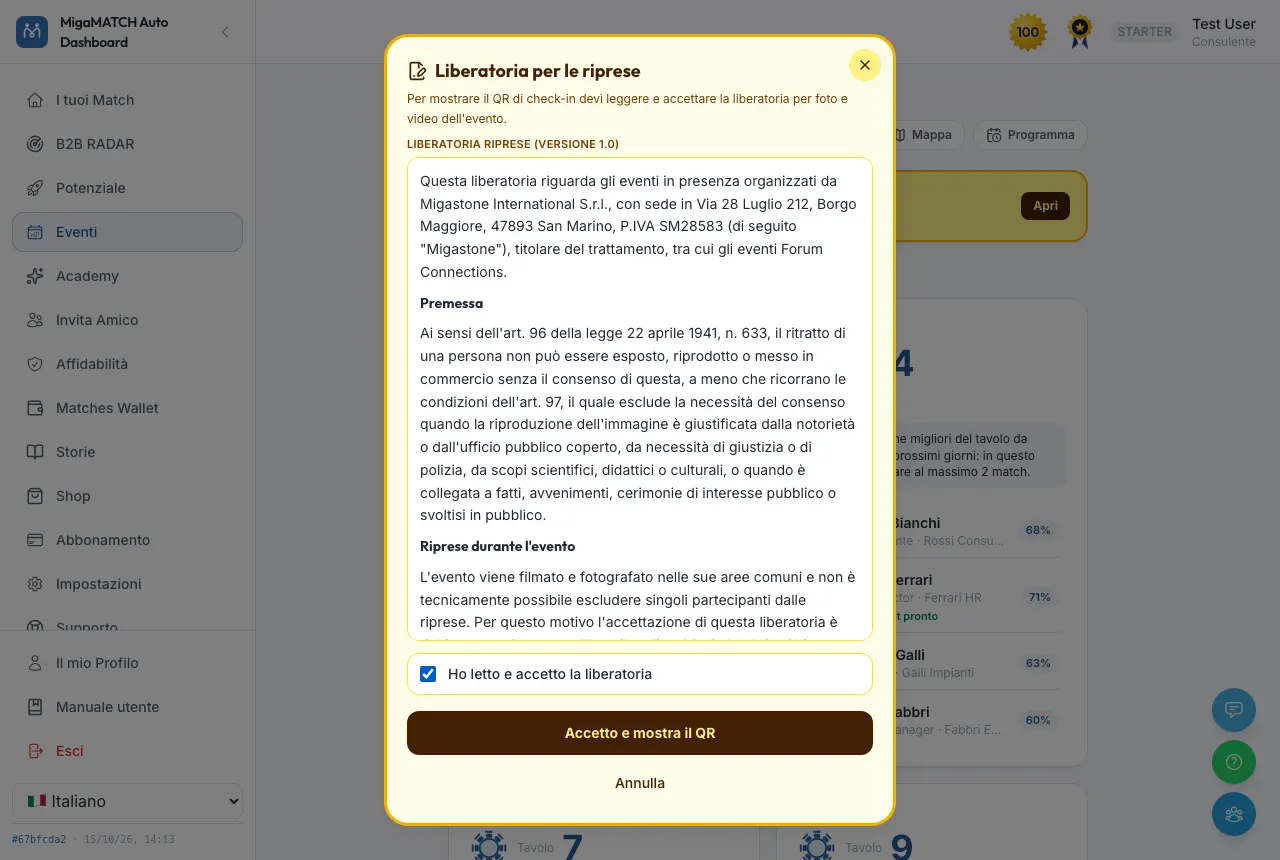
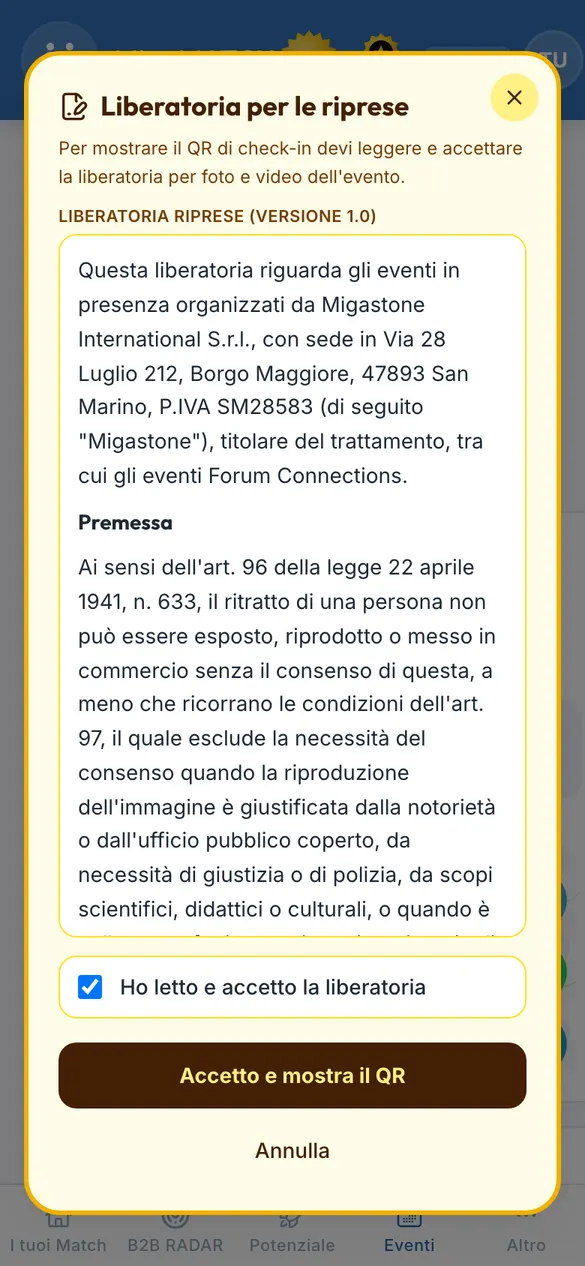
Why do I have to accept the release?
Because the event is filmed and photographed in the common areas and a single participant cannot be left out of the footage: the release says what those images are for (Migastone's communication and promotion). We ask for it before the QR because it is the step everyone takes before entering, and your acceptance stays tied to your account: you do not fill in a form with your details in a queue. The “In short” box comes before the full text because at the entrance you only have a few seconds: you read the points that matter, and the full text is one tap away. You can withdraw your consent at any time by certified email (PEC) to migawin@pec.it: withdrawal applies from then on, so content already published or being edited stays, while in new content you no longer appear in close-up (wide shots of the room may remain). If an image slips through after you withdraw, report it to privacy@migamatch.com or by PEC: it is removed within 7 working days.
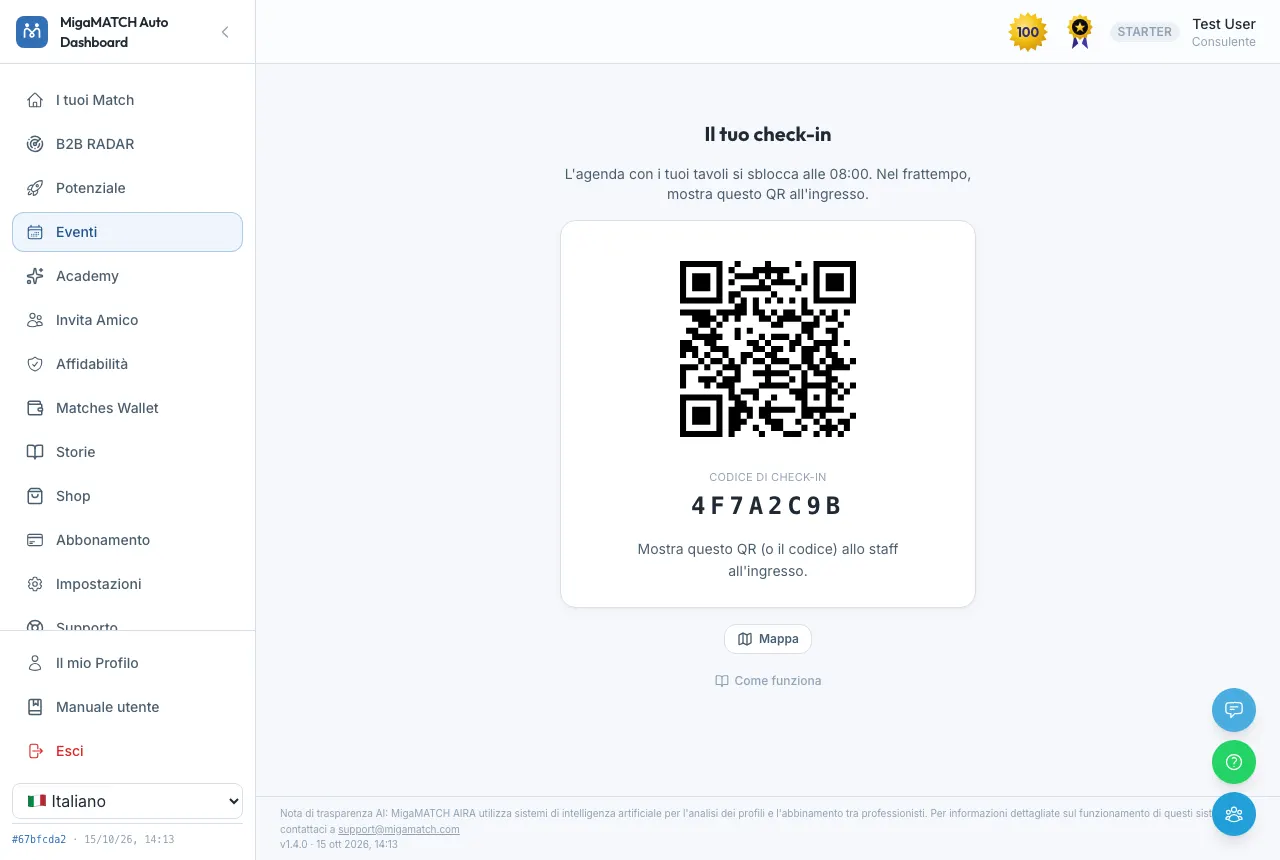
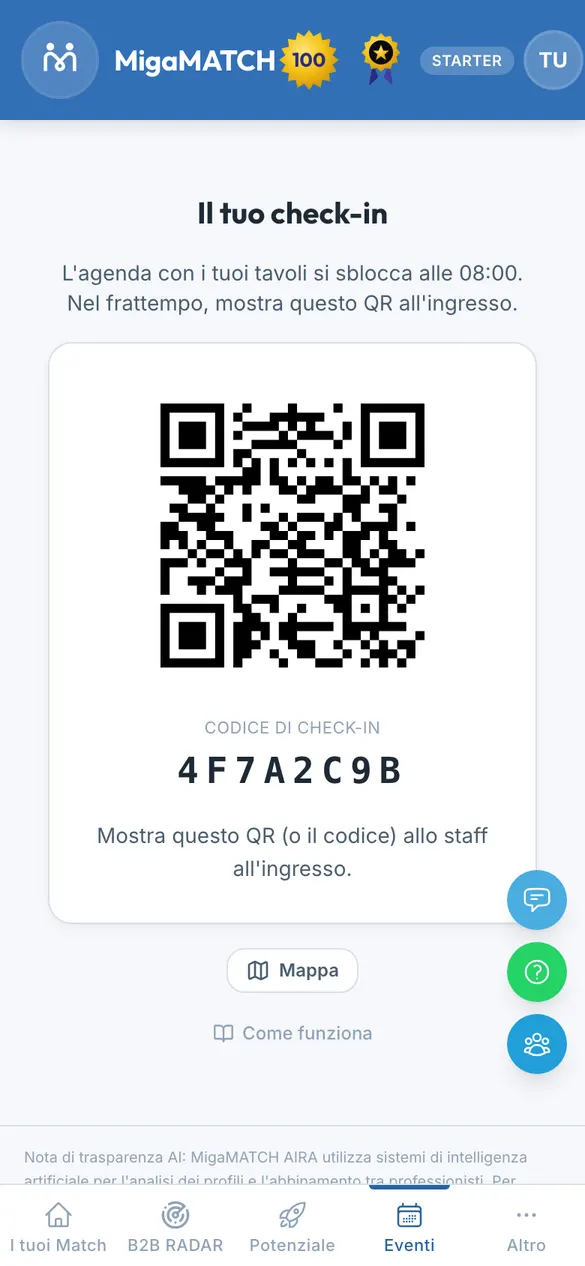
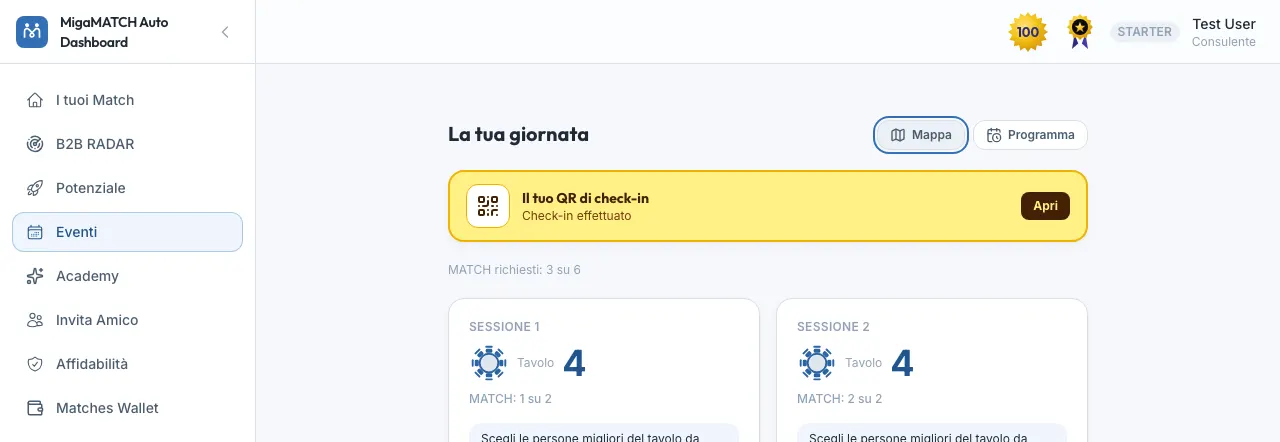
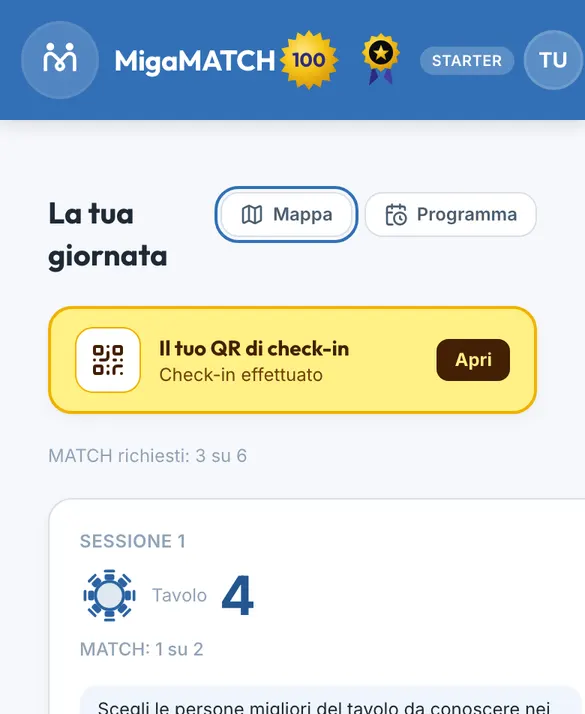
- The QR stays available after opening too: you find it at the top of the agenda, above the MATCH line and the sessions, in the yellow button “Your check-in QR” (“Show it to staff at the entrance”). Tap “Open”: a yellow-bordered window opens with the QR and the code. You close it with the X, with “Close” or with the Esc key. Tapping outside the window does not close it, so it does not disappear while you hold the phone up to the staff's scanner. It sits at the top because at the entrance it is the first thing you need: you find it at once, without scrolling past the sessions.
- When staff register you, the button and the box show “Checked in”. Check-in does not change your tables: it records that you are in the room, as it does for attendance at other events.
Is my code safe?
The code is computed by the platform from your profile and the event, with a secret key: it cannot be guessed and cannot be derived from other data. The QR contains only the event identifier, your member number and that code: no name, no email, no phone number. It cannot be used to get into your account. It does, however, work as your ticket at the entrance of that event: keep it to yourself and don't post it.
Your sessions and your tables
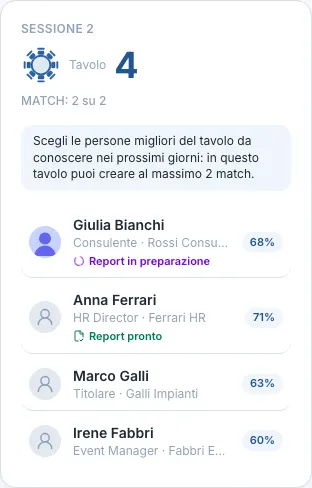
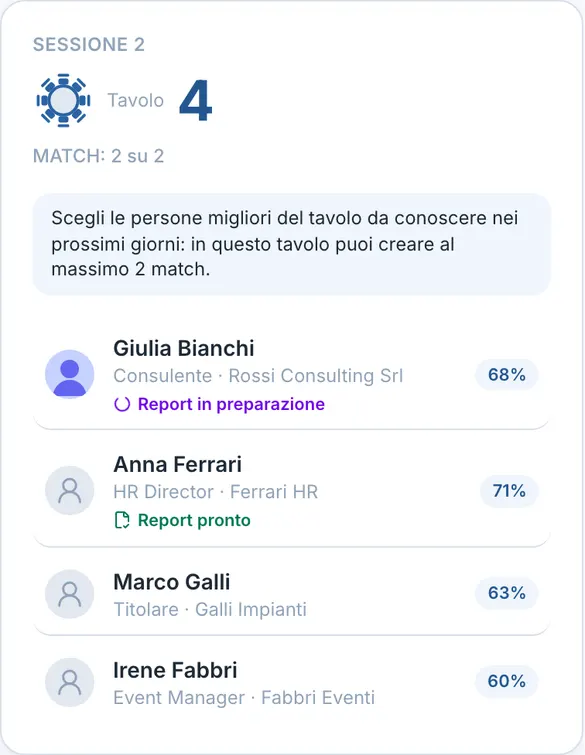
When the agenda is open and the plan is frozen you see “Your day”: one card per session, with the table number in large type (it's what you look at between sessions) and the list of people who will sit with you, with their role, company and the affinity percentage between the two of you. At the top, above the cards, sits the yellow button for your check-in QR (see Before opening: your check-in QR).
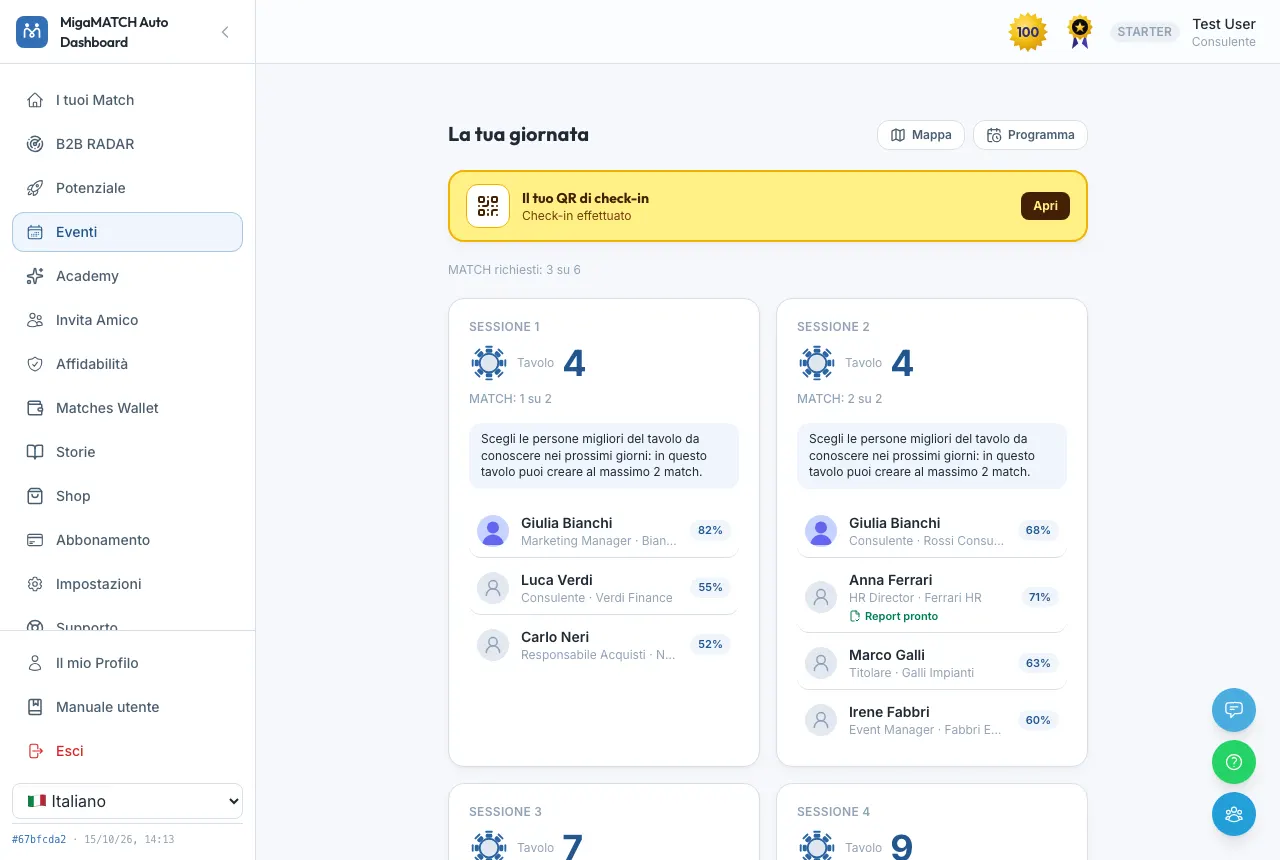
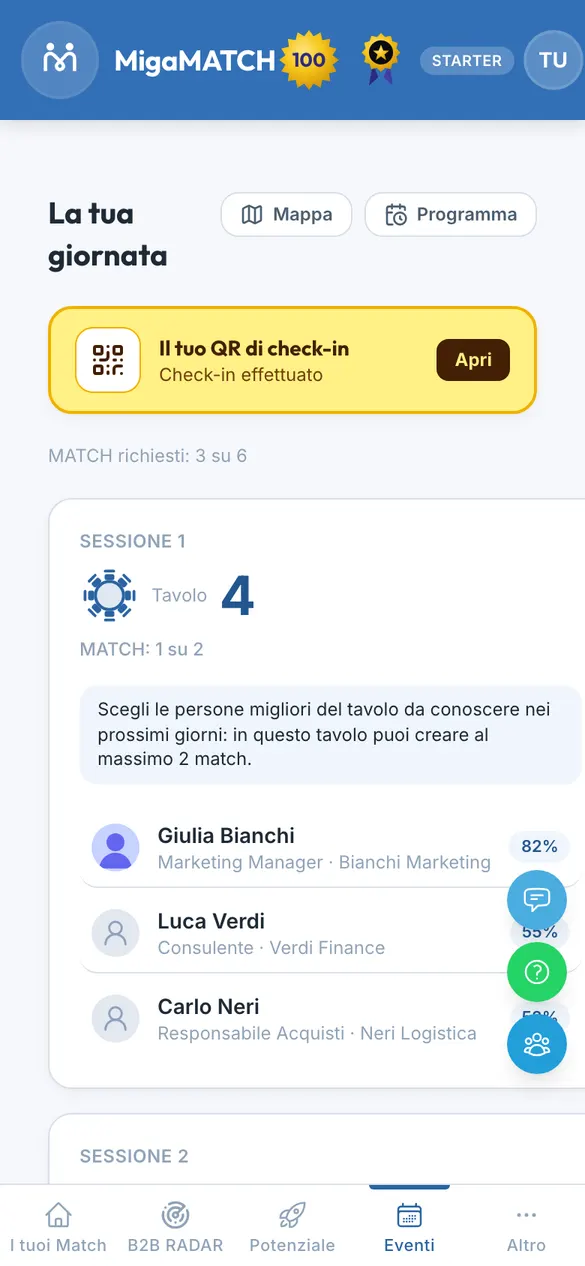
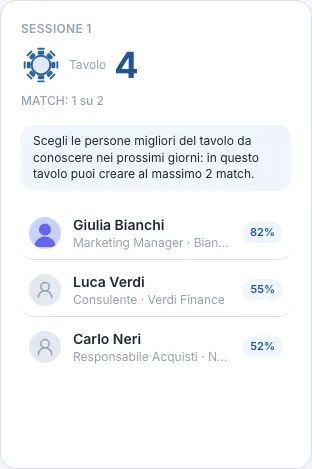
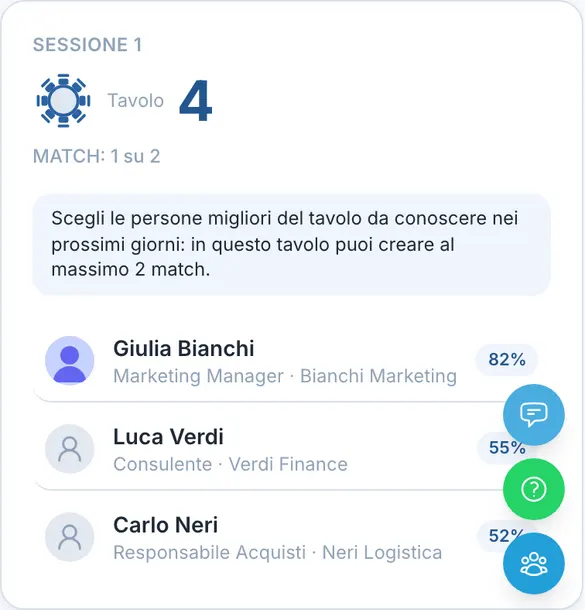
- The line “MATCH requested: 3 of 8” tells you how many MATCH you have already requested among the people you met and how many you can request in total; on each session the line “MATCH: 1 of 4” says how many are left for that session (see “Crea MATCH”).
- Next to the number there is a table icon; below it, when the table has a host, the line “Table host: …” with the company they represent: the one they are Referral Director of, otherwise the company in their profile, otherwise their name. A table without a host shows no line. In the list of people the host has the “Table host” badge next to their name.
- If you are the host, the card changes: see If you are a table host.
- An empty seat is normal. If someone cancelled their registration or replied “Non vengo” after the plan was closed, they no longer appear among your tablemates: that chair stays free. If nobody is left to show you in a session, the card says so.
- Your printed badge (8.9 x 12.7 cm, printed in Italian) shows your member number (UID), your table for each session (SESSIONE 1 to 4), the check-in QR to show at the door and a smaller QR that opens the app (auto.migamatch.com). Paper and phone match: the table number is the same as in your agenda. If staff added you at the last minute, your badge is handwritten and that is what counts.
If you are a table host
Table hosts represent the companies that host a table. If you are one of them, every session card opens with an amber box: “You are the host of Table N”, “Representing …” with your company, and the prompt “Welcome your guests and get the introductions started.”
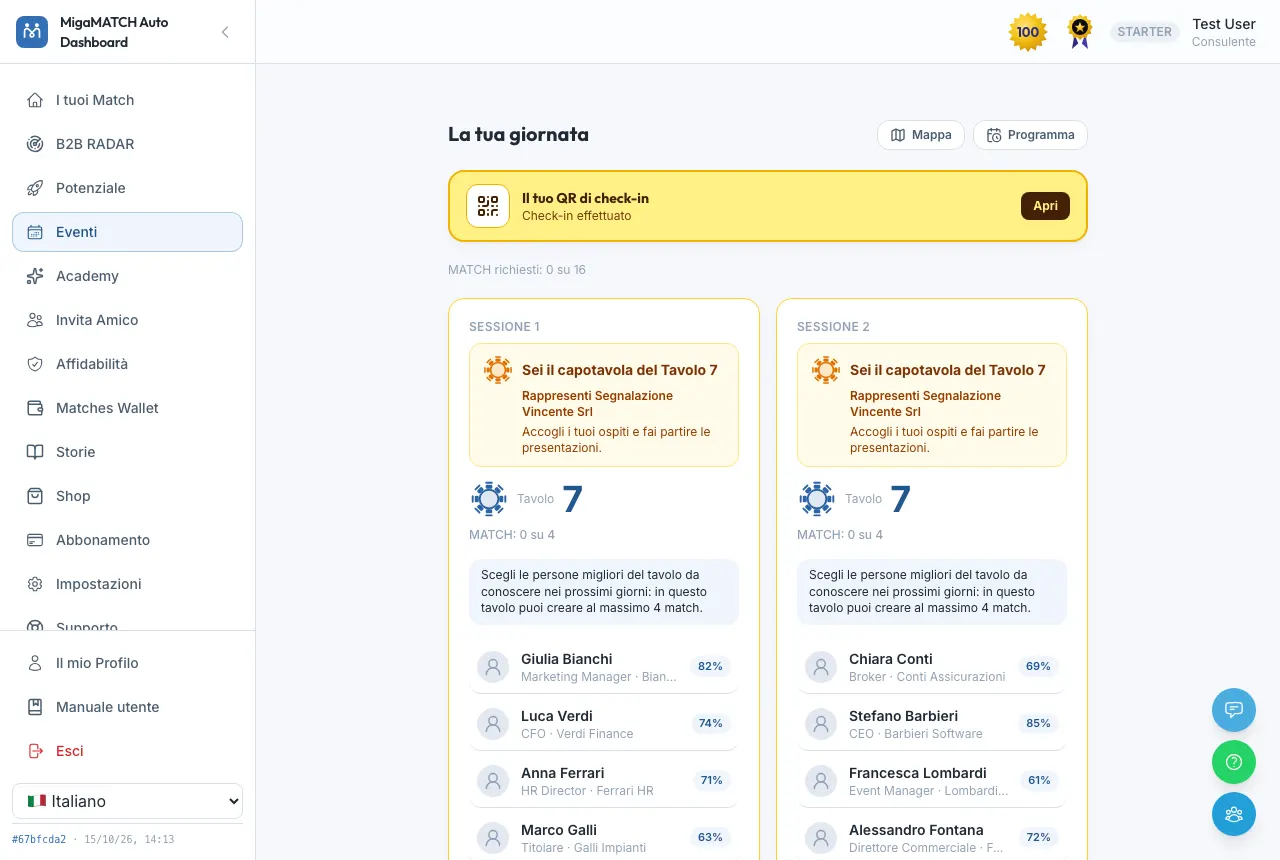
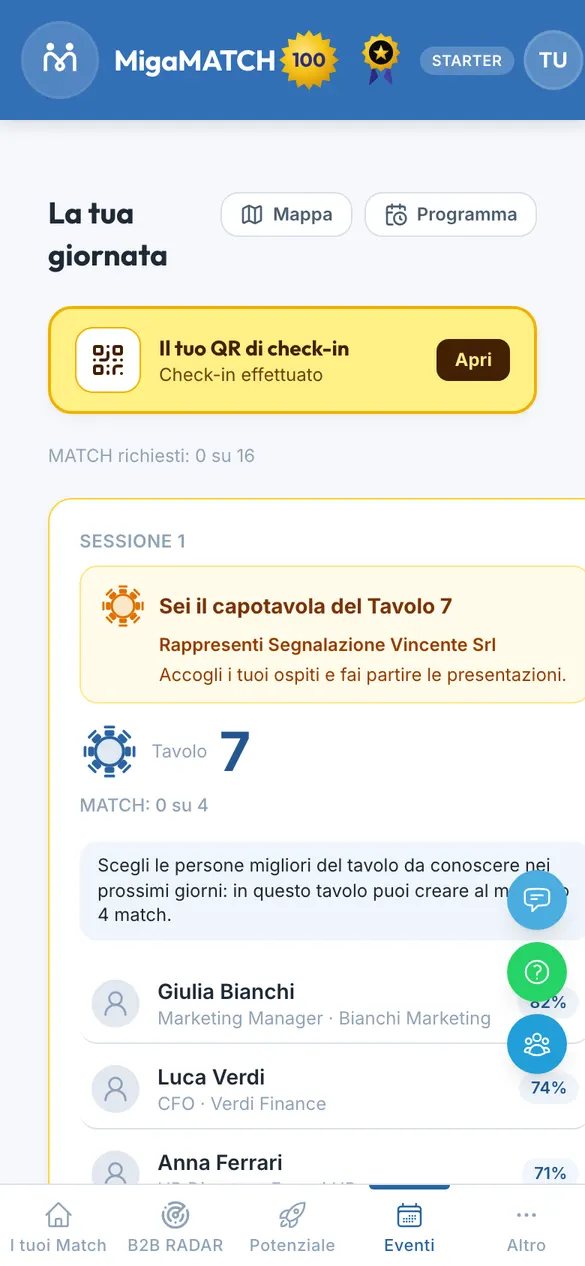
- You stay at the same table, with the same number, for every session: the guests change at each session. Your badge carries the black band “TABLE HOST · TABLE N”, and your table's stand shows your company's name and, if there is one, its logo.
- The company shown is the one you are Referral Director of; if you are not one, the company in your profile. If there is none, the “Representing” line does not appear.
- The other participants see your table with the “Table host: …” line and the “Table host” badge next to your name.
- Otherwise your agenda works like everyone else's: people cards, “Create MATCH” and the PRO report.
Who sits with you: the person's card
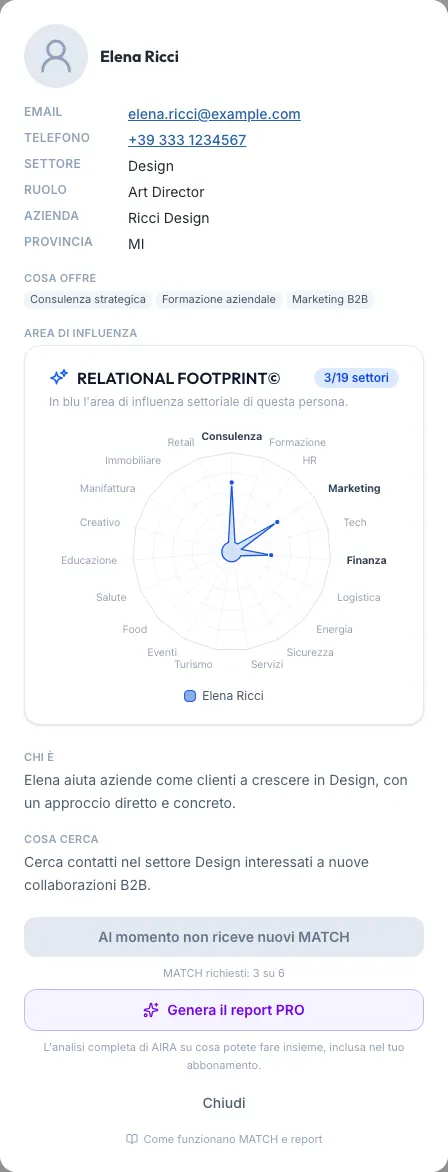
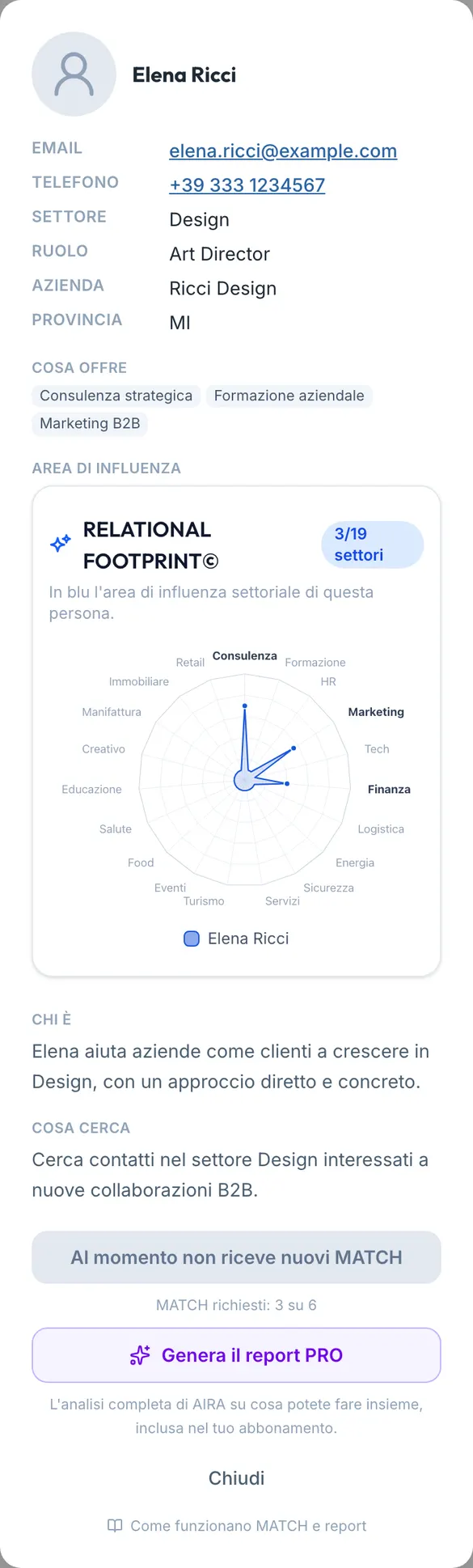
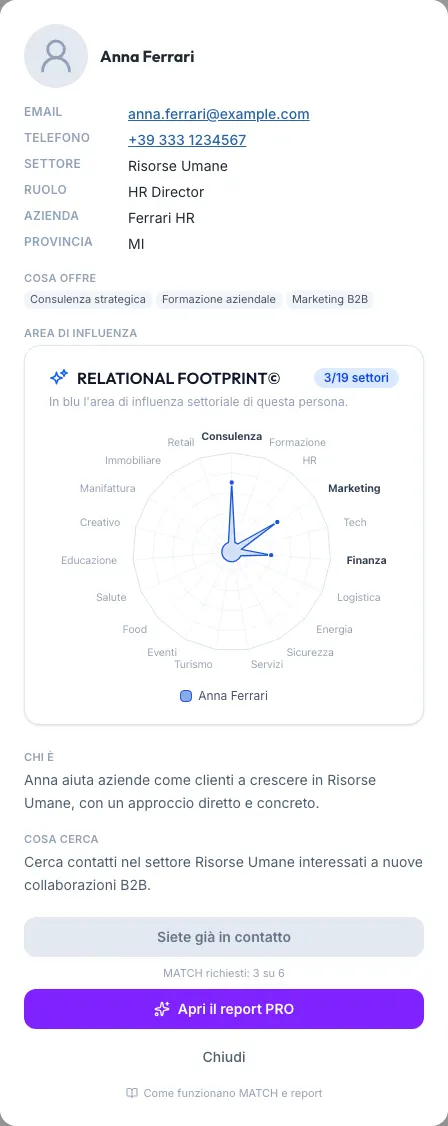
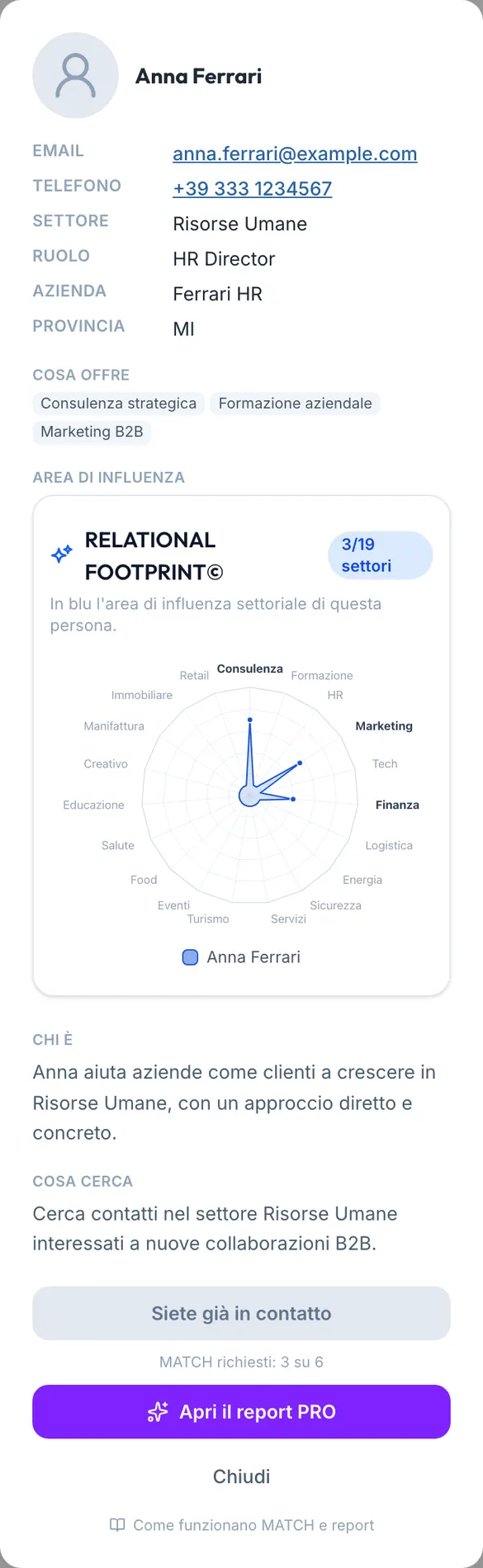
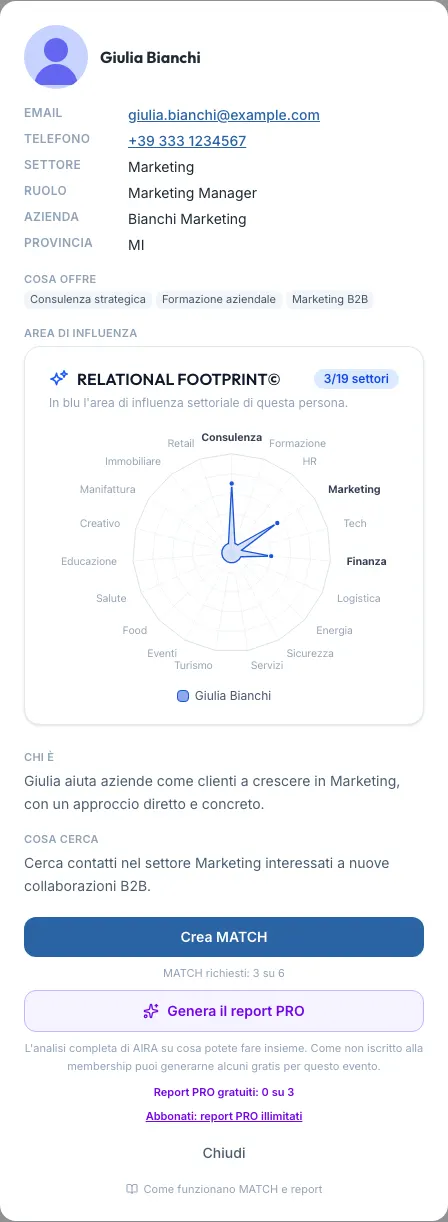
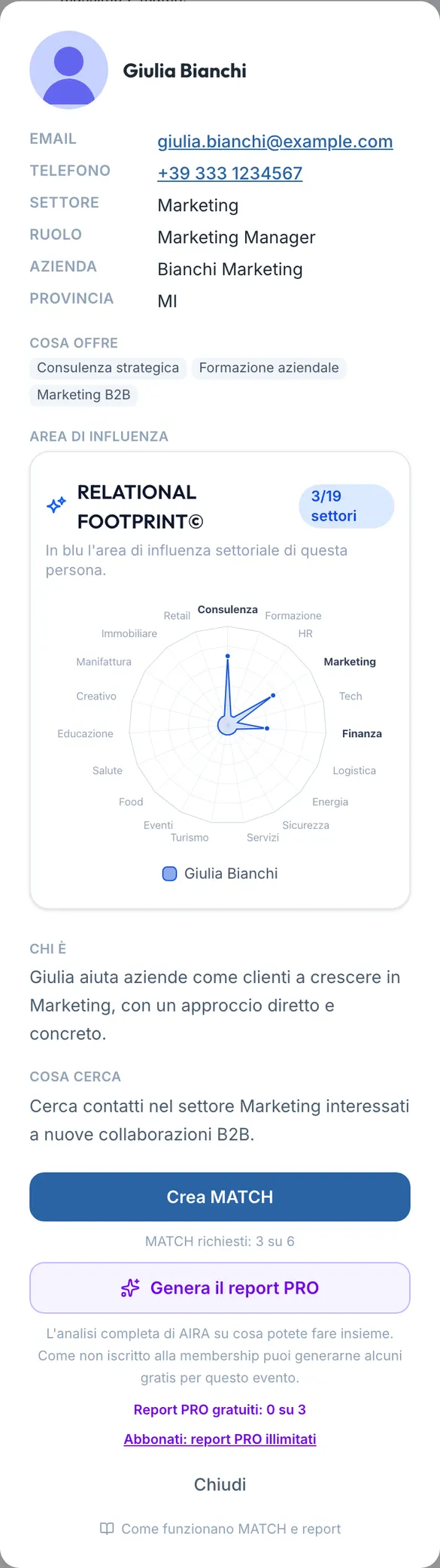
Tap a name and their card opens. At the top you find what you need to reach them after the event: email and phone, sector, role, company and province. Then “What they offer” (labels for what they provide) and “Area of influence”, the radar of the sectors where they have relationships; finally “Who they are” (their biography) and “What they're looking for” (their goals). It all comes from their MigaMATCH profile. The card is free for everyone, opens instantly and uses no artificial intelligence: it is there to get you ready in thirty seconds before you sit down, and to carry the conversation on afterwards.
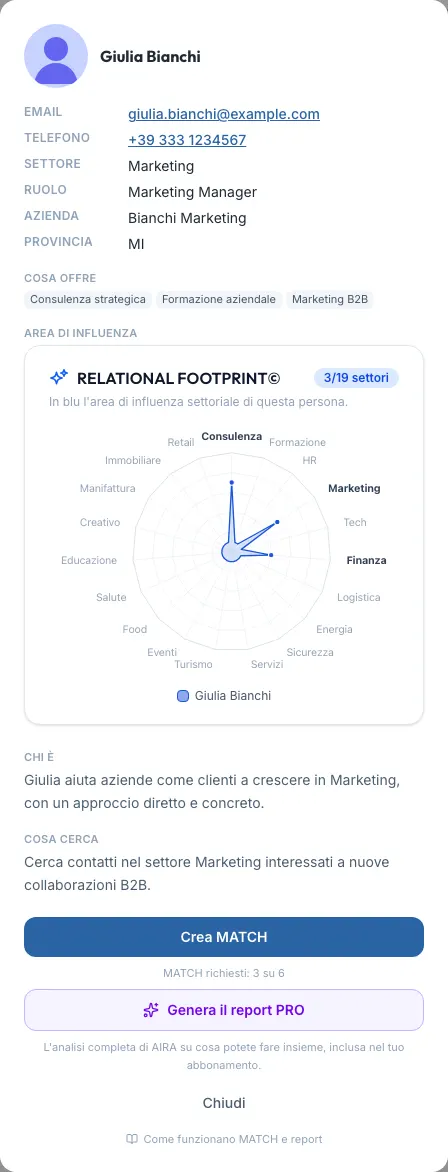
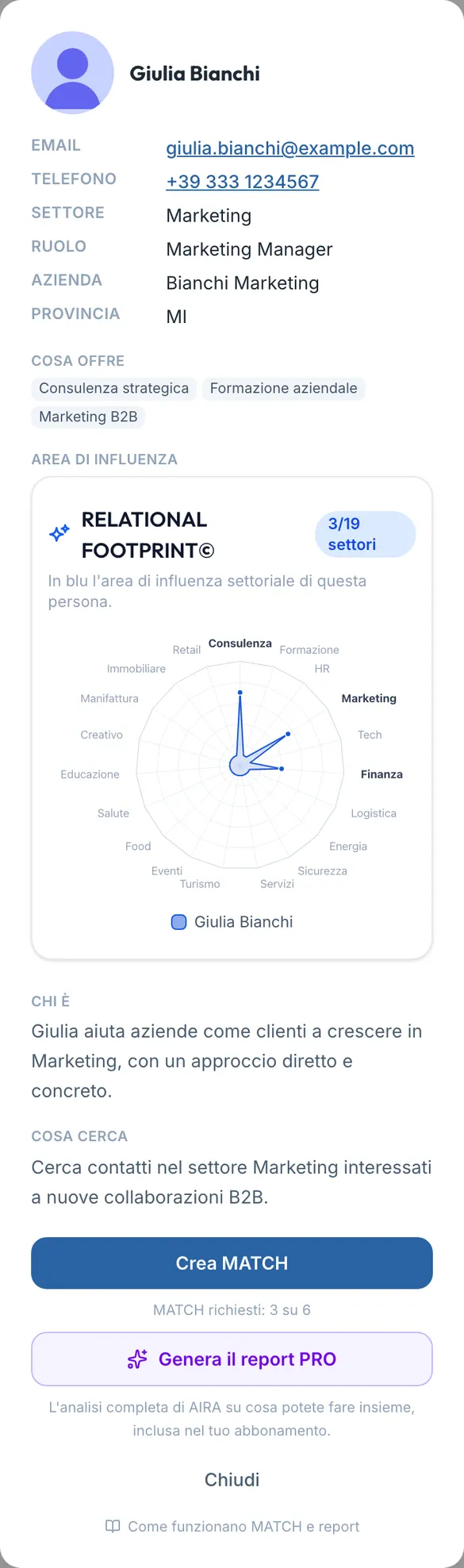
- You can only open the card of people you actually share a table with in the plan: the platform checks this every time.
- If the person has not yet written a bio and goals, or has not filled in their area of influence, the card says so: in that case the best way to get to know them is at the table.
Why do I see their email and phone?
Because the table is for getting to know people, and a MATCH only starts if you can find each other afterwards. The contact details are visible only to people who shared a table with that person in the plan, never to other participants, and the radar shows you at a glance where they can be useful to you.
“Create MATCH”
You met someone at the table and want to continue the conversation? From their card press “Create MATCH”. A real MATCH is created, like the ones you receive every week: you find it under Your Matches, with its report, the feedback after the meeting and the rest of the journey. On the MATCH card, among your Matches, a red “Forum” label reminds you it was born at the tables.
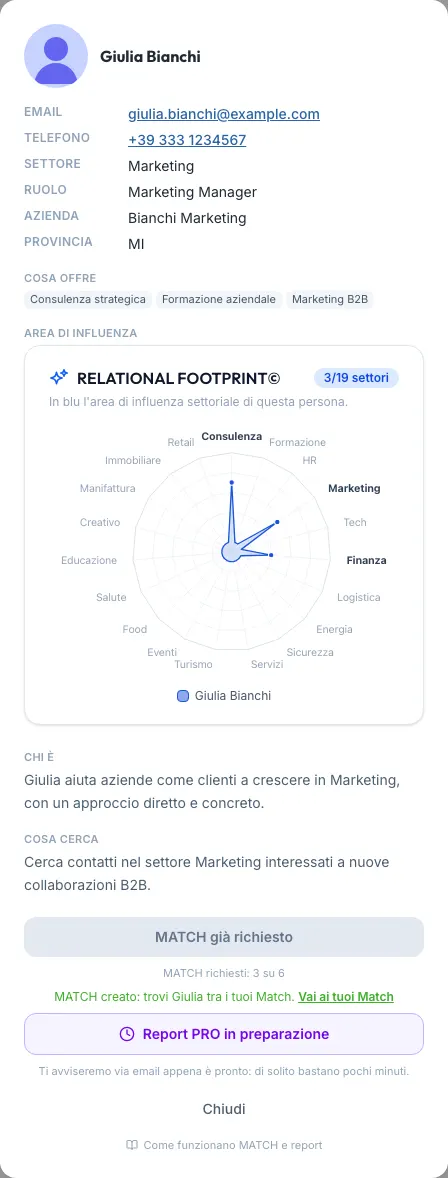
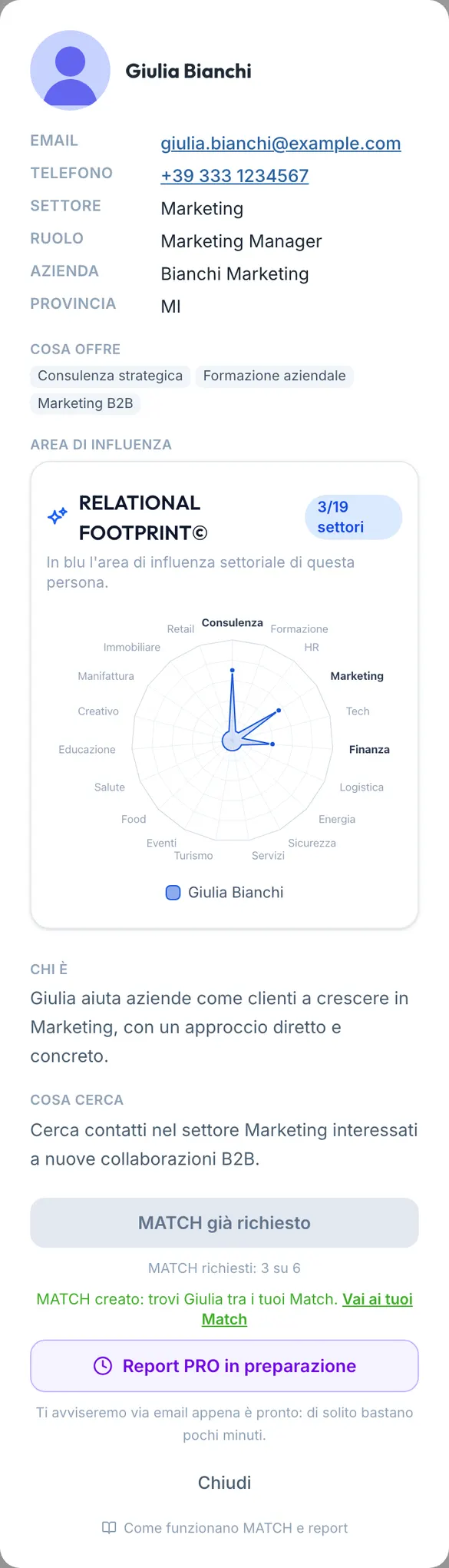
- It is free: it does not use your Match Credits. It is a MATCH that you request: the other person receives it as a normal MATCH and the report is prepared for both of you. Like any MATCH, it counts towards the week's MATCHes for both of you.
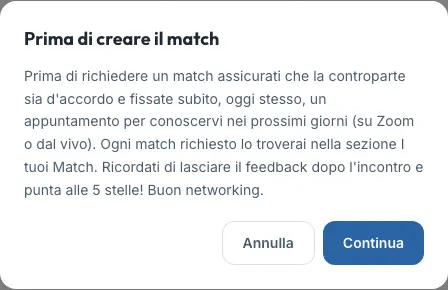
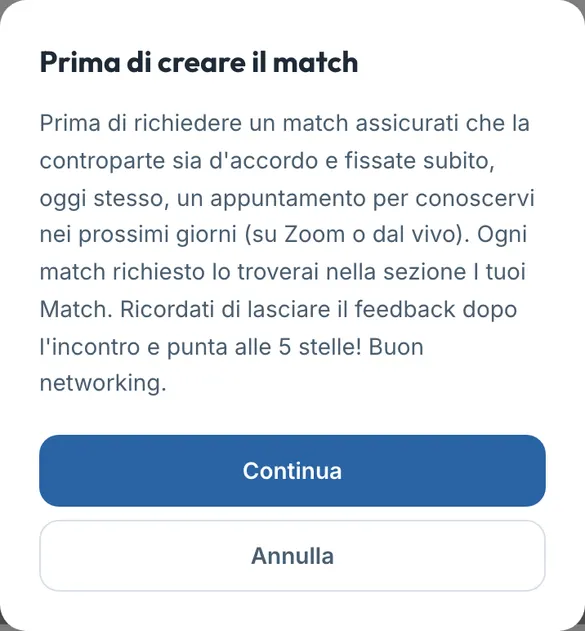
- First, a confirmation: “Create MATCH” opens the “Before you create the match” window: “Before requesting a match, make sure the other person agrees, and set a date right away, today, to get to know each other in the coming days (on Zoom or in person). You will find every match you request in the Your Matches section. Remember to leave feedback after the meeting and aim for 5 stars! Happy networking.” “Continue” creates the MATCH, “Cancel” creates nothing.
- There is a cap per session: in each session you can request a MATCH from at most half of the other networking participants at your table, rounded up (4 at a table of 8; companions do not count). Above each session's tablemates the line “Choose the best people at the table to get to know in the coming days: at this table you can create at most N matches.” tells you how many. A request counts in the first session in which you sat at the same table. The counters (“MATCH requested: 3 of 8” at the top, “MATCH: 1 of 4” on each session) tell you where you stand. With someone you already have a MATCH with, or have already requested, the button is grey.
- When: from the moment the agenda opens, on the day of the event. A refused attempt writes nothing and does not use up the cap.
- If you are not interested after all: a MATCH born at the tables (with the “Forum” label) has one extra option in the feedback: after “No, it didn't happen” you can choose “I am not interested in this contact”. The MATCH closes with no penalty for either of you (“No penalty for either of you”), no refund, no new pairing in its place and no email to the other person; you do not have to write a reason. If you receive a MATCH born at the tables that you did not request, you are also spared the penalty or the block for feedback that runs out.
When the button is grey, its text tells you why:
| Text | What it means |
|---|---|
| “Create MATCH” | You can request it now. |
| “MATCH already requested” | You have already requested it from this person during the event. |
| “You're already in touch” | There is already an active or completed MATCH between you, in one direction or the other. |
| “MATCH already closed in the past” | In the past there was already a MATCH from you to this person, later cancelled or expired: it cannot be repeated. |
| “MATCH limit reached” | You have used all the requests for this event. |
| “MATCH not available” | The platform's pairing rules do not allow this MATCH. It does not depend on you and we don't tell you which rule. |
| “Not receiving new MATCHes right now” | The person is not receiving new MATCHes at this time. |
Why don't you tell me the reason?
Behind “Not receiving new MATCHes right now” and “MATCH not available” there may be personal choices (someone who has paused incoming MATCHes) or facts that concern only that person. They are none of the business of someone who shared a table with them, and a different text for each reason would make them visible to everyone. That is why there is a single text, it is neutral and it appears before you press: you don't waste time and you don't use anything up.
Why a limit per session, and why the confirmation?
Because a MATCH is a commitment to meet and to leave feedback. Requesting the whole table out of habit empties it of meaning, and fills other people's week with meetings you did not really want. Choosing the right people is the point. The confirmation reminds you of the two things that make a MATCH born at the table work: the other person agrees, and you set the meeting right away, while you both remember each other well.
The PRO report
Besides the free card, you can request the PRO report on any tablemate: the full analysis written by AIRA on what you can do together, the same one that accompanies your MATCHes.
- Who has it without limits: people with an active Business or Enterprise subscription, and Referral Directors. For everyone else the report is free for 3 people per event: “Free PRO reports: 0 of 3” tells you where you stand, and the “Subscribe: unlimited PRO reports” link under the counter takes you to the subscription page to subscribe on the spot.
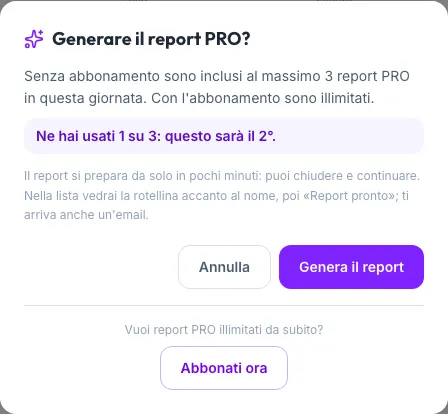
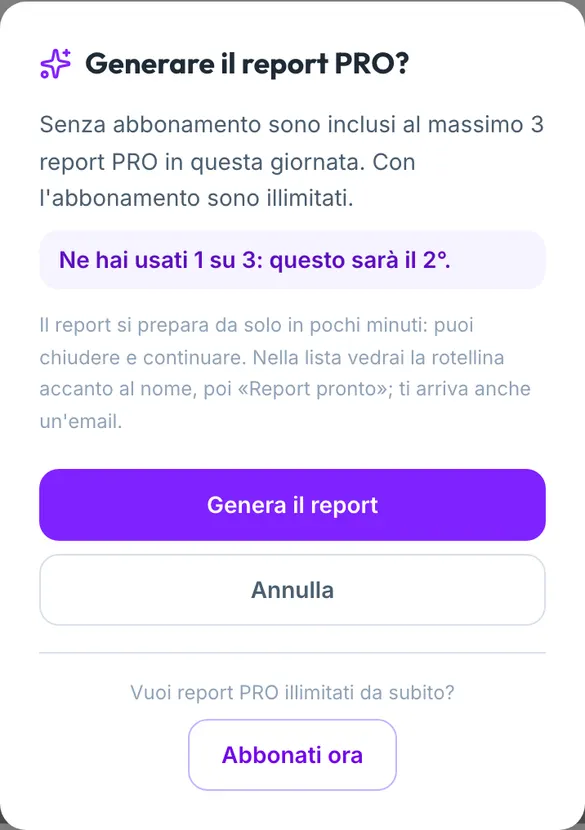
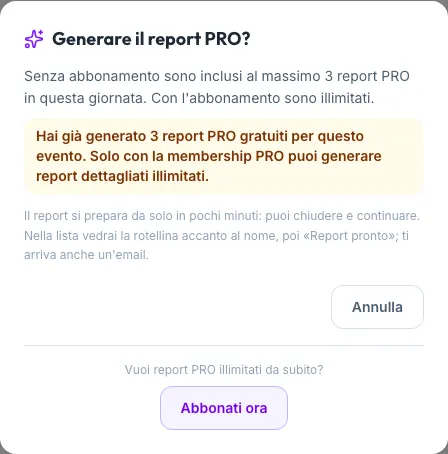
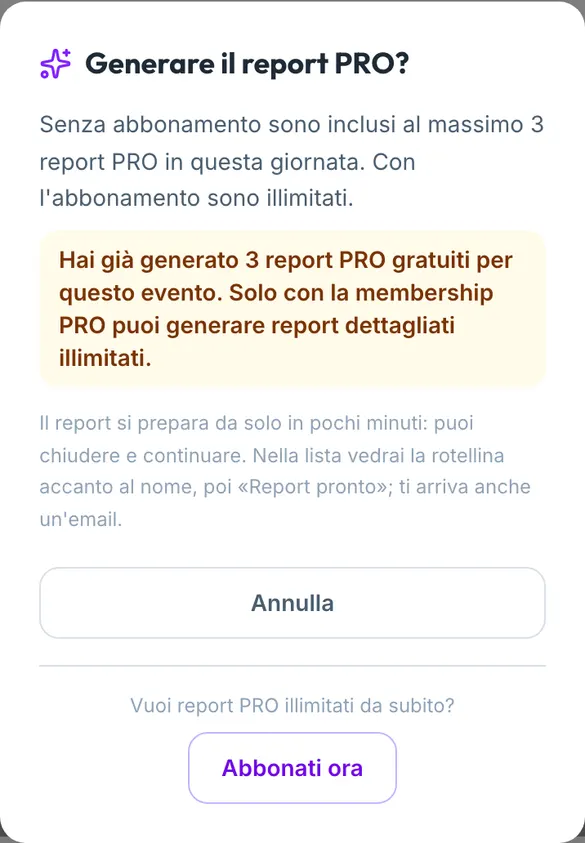
- We ask you to confirm first: “Generate the PRO report” opens the “Generate the PRO report?” window. With a membership it reminds you that reports are unlimited; without one it tells you where you stand (“You have used 1 of 3: this will be number 2.”). “Generate the report” requests it, “Cancel” uses nothing up. Once the three are used, the window says so and offers only “Subscribe now” (in the iPhone and Android app “Subscribe now” and the link are not there, only the notice).
- It is not instant: writing a report takes a few minutes and it is prepared by itself: you can close the card and carry on with your day. The button becomes “PRO report in preparation” and in the list of tablemates, under the name, “Report being prepared” appears with a spinner, turning into “Report ready” when it is done. While a report is being prepared the list refreshes by itself every 20 seconds; you also get an email.
- When it is ready the button becomes “Open the PRO report” and takes you to the report.
- If generation fails, the card says so and you can try again.
Why doesn't the PRO report open instantly?
On a day with a hundred people, the pairs seated together number more than a thousand. Writing a full report for each would mean days of computation squeezed into a few hours. That is why the free card is instant for everyone, while the full report is prepared in a queue, only when you ask for it. The three free reports per event let you try the value of a full report on the people who matter most to you; to have it across the whole room there is the membership. The confirmation before each request tells you how many you have left, so you never spend one on a careless tap.
The day schedule
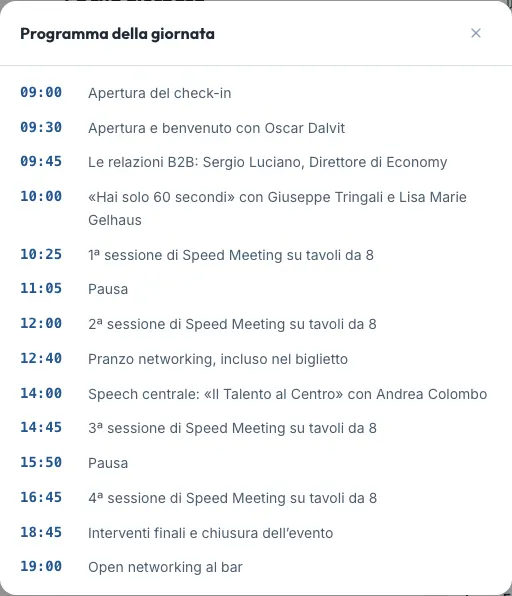
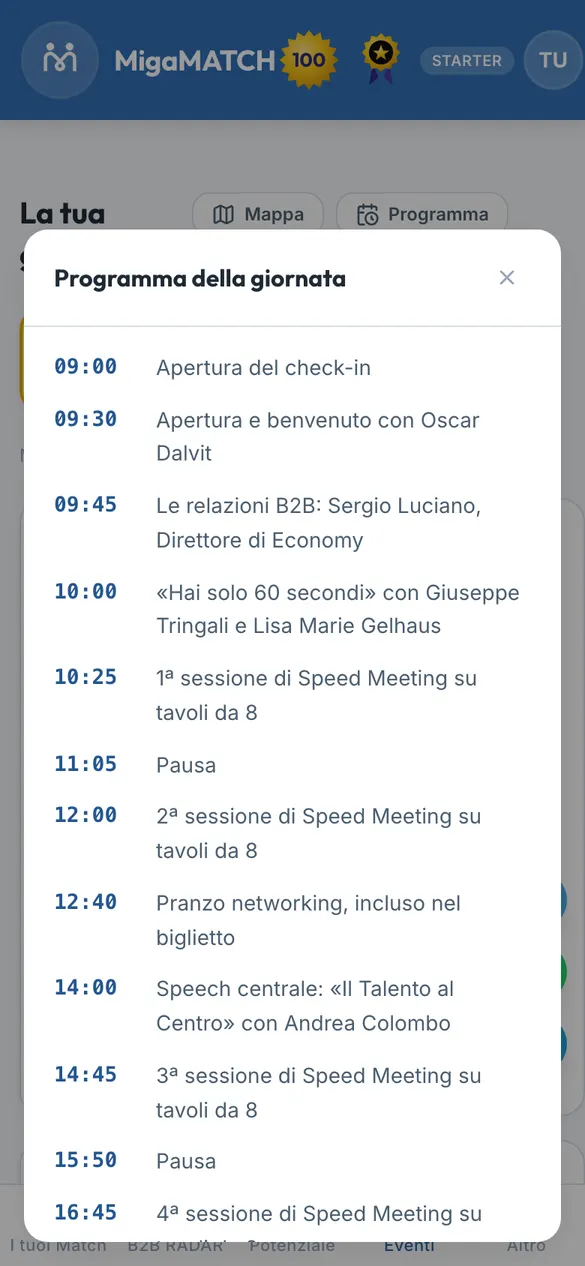
At the top right of the agenda there is the “Schedule” button: it opens the full timetable of the day, with talks, breaks, lunch and the four speed meeting sessions. The organiser prepares it; if it is not ready yet, the window says so.
The room map
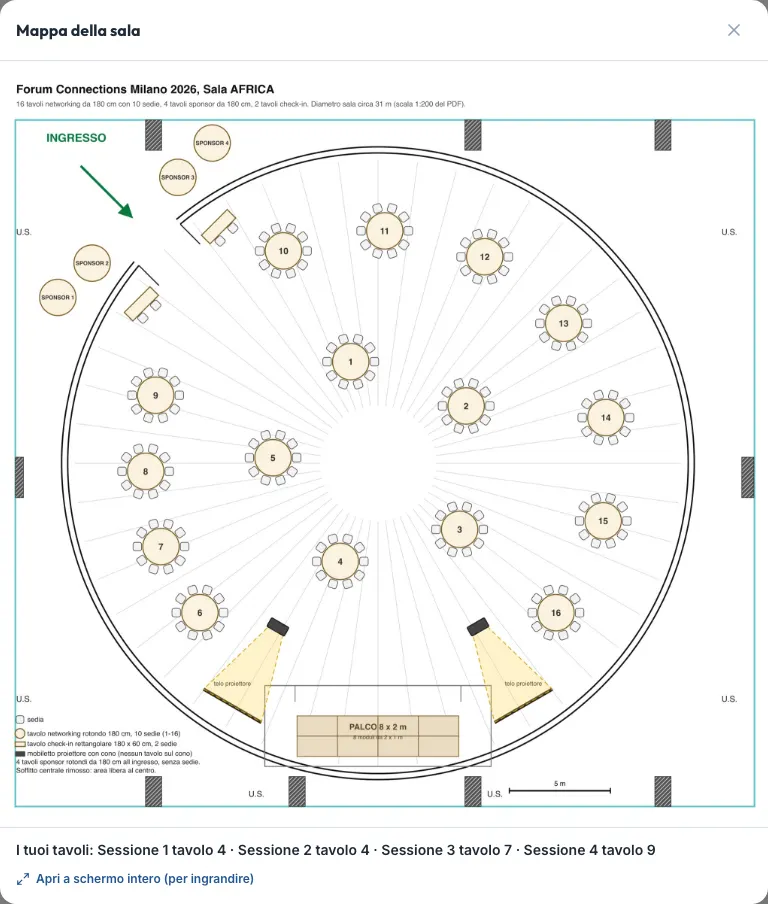
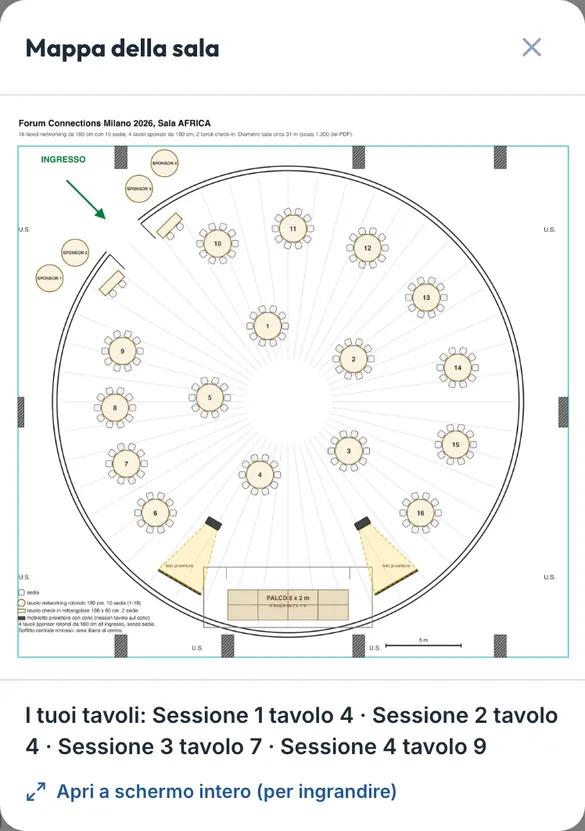
“Map” sits next to “Schedule” once the agenda is open; before it opens and while the plan is in preparation it stands alone under the QR, and for people on the door list only (speaker, staff, moderator, companion) it is next to “Schedule” again. It opens the floor plan of the room (for the Milan Forum, the AFRICA room) with the numbered tables, the entrance, the stage and the sponsor tables. Under the image, the line “Your tables: Session 1 table 4 · Session 2 table 4 · …” tells you where to sit in each session; a moderator reads “Your moderator table: N” instead. “Open full screen (to zoom in)” opens the image on its own so you can pinch to zoom (in the app it opens in the phone's image viewer).
The map is there even before the agenda opens, while the plan is in preparation, and for people who are on the door list only (see Where to find your agenda).
Why a map in the agenda?
A plan on your phone beats a printed one you have to hunt for at the door. The table number on your badge and in the agenda is the same one: the map tells you where that table physically is, and the line under it lists yours, session by session. Between one session and the next you do not search: you walk straight to the right table.
After the event
Once the day is over, the check-in QR disappears and the agenda moves to Events → “Past events”, where it stays for 30 days: complete for members, with blurred names for everyone else. Table hosts also find the guest-list offer there. Who sees what, until when and why: user manual, “After the Forum”.
If you can't come, cancel or arrive late
- You replied “Non vengo”: on the morning of the event the plan is prepared without you. If you then come anyway, at the entrance staff put you on a free chair and write you a badge by hand.
- You cancelled your registration: you are no longer in the plan and your agenda shows no tables. To cancel a paid ticket, the rules in the user manual, under Events with a paid ticket apply.
- You arrive late but you are in the plan: your seat is waiting for you. Go to the table of the current session: it is written on your badge and in the agenda.
- You turn up without a seat in the plan (registered at the last minute, or you had said “Non vengo”): you wait for the first session to start. Only then is it clear which chairs are still free, and staff assign you those, a different table for each session. Anyone who turns up without being registered must register first (ticket or gift code).
- You have to leave early: let staff know on your way out. Your afternoon seat stays empty; nobody is moved because of it.
- The event is cancelled: the agenda says “Event cancelled” and shows no tables.
Questions and answers
Why can't I see my tables yet?
For one of three reasons: the agenda is not open yet (the page shows your QR and the opening time), the plan is not frozen yet, or you are not in the plan yet because you registered after the freeze. In the last case staff will give you a seat in the room.
I can't find the agenda page.
On the day of the event you find it from the red bar on the dashboard or from the red “Go to agenda” button on the event card, on the Events page. You must be signed in with the account you registered with.
Where do I find the room map?
In the agenda, with the “Map” button: next to “Schedule” once the agenda is open, alone under the QR before it opens or while the plan is in preparation. It shows the floor plan and your tables for every session: see The room map.
Why can't I request a MATCH with someone at my table?
The button tells you: you have already requested it, you're already in touch, a past MATCH between you was closed, you have reached the event limit, the MATCH is not allowed by the platform's pairing rules, or the person is not receiving MATCHes at this time. See the table in “Create MATCH”.
What does “Not receiving new MATCHes right now” mean? Is it about me?
No. It concerns only that person and applies to everyone, not to you in particular. We don't tell you the reason out of respect for their privacy. You haven't lost anything: the attempt does not use up your limit.
How many MATCH can I request?
In each session, up to half of your tablemates, for example 4 at a table of 8. The counter at the top of the agenda (“MATCH requested: 3 of 8”) and the one on each session (“MATCH: 1 of 4”) tell you where you stand.
Does a MATCH from the agenda cost Match Credits?
No, it is free. It is, however, a MATCH in every respect: it reaches the other person, involves feedback after the meeting and counts towards the week's MATCHes for both of you.
Will the other person know I requested the MATCH?
Yes: they receive it as a normal MATCH and the report is prepared for both of you. That is the point of the button: continuing a conversation started at the table.
Until when can I use “Create MATCH”?
From the moment the agenda opens, on the day of the event. The red bar and the “Go to agenda” button appear only on that day: make the most of it that same evening, while you remember the people well.
I replied “Non vengo” by mistake. What do I do?
Tap “Ci sarò” in the same WhatsApp message: the last reply counts. If the plan has already been closed without you, come anyway: at the entrance staff will give you a free chair and write you a badge by hand.
I tapped a button on WhatsApp but nobody replied.
That's normal: your choice is recorded without a confirmation message. Staff see it immediately in the console.
I didn't reply to the WhatsApp message. Have I lost my seat?
No. Anyone who doesn't reply is considered present and stays in the plan. Replying does, however, help staff avoid leaving chairs empty.
I'm arriving late. What happens?
If you are in the plan, your seat is waiting for you: go to the table of the current session, which you find on your badge and in the agenda. If you are not in the plan, staff place you on a free chair from the next session.
Can I change table or sit with a friend?
No. The plan is single and printed: changing seats on your own takes the chair away from someone else and confuses the other tables. For a real problem talk to staff, who can move people from the console.
Why am I never at the same table as my colleague?
It is a fixed rule: two people from the same company (or with the same VAT number) never sit together. You came to meet new people.
Why did I meet the same person in two sessions?
It can happen when only a few people have a very high affinity with you: the platform allows at most two meetings with the same person during the day and tries to keep them to a minimum. Never three.
A tablemate has disappeared from my agenda.
They cancelled their registration or said they are not coming after the plan was closed. Their chair stays empty.
Who is entitled to the PRO report, and how long does it take?
People with an active Business or Enterprise subscription and Referral Directors, without limits; everyone else for 3 people per event, for free. A few minutes are usually enough and meanwhile you can close the card: when it is ready, “Report ready” appears under the name in the list, the button becomes “Open the PRO report” and you get an email. If it fails, you can try again from the card.
Is my check-in code private?
Yes. It is computed with a secret key, it is valid only for you and only for that event, and the QR contains no name, email or phone number. It cannot be used to get into your account, but at the door it works as your ticket: don't post it.
My phone battery is flat.
No problem: staff will find you by name, and the QR is also printed on your badge, together with the table number for each session.
What does the organiser see about me?
In the console the staff see the list of registrants with name, company, member number, your answer to the attendance confirmation, whether you accepted the filming release (in the app or on paper), your entry and exit times and the tables assigned to you. The console does not show the MATCH you request or the cards and reports you open.
Does “Non vengo” cancel my ticket or refund me?
No. It only serves to not keep a seat at the table for you. Your registration stays; for a refund, the procedure in the user manual applies.
Why do I have to accept the release?
Because the event is filmed and the footage cannot leave out a single participant; without acceptance the QR does not unlock. The full reason and what to do if you do not want to accept are in Before opening: your check-in QR.
Can I decline a match that was born at the Forum?
Yes. In the feedback of a MATCH born at the tables choose “I am not interested in this contact”: no penalty for either of you, no email to the other person. See “Crea MATCH”.
What does “Table host: …” under the table number mean?
It is the company hosting that table, represented by the table host: the company they are Referral Director of, otherwise the one in their profile, or their name if they have none. The host sits with you and has the “Table host” badge in the list. If the line is missing, that table has no host.
I am a table host: do I change table between sessions?
No. You stay at your table, with the same number, all day; the guests rotate. Your agenda reminds you in every session with the “You are the host of Table N” box.